Add your Meta pixel or Google Analytics
See who visits your pages, with their consent.

Steps
You can add your own Meta pixel or Google Analytics to your public pages.
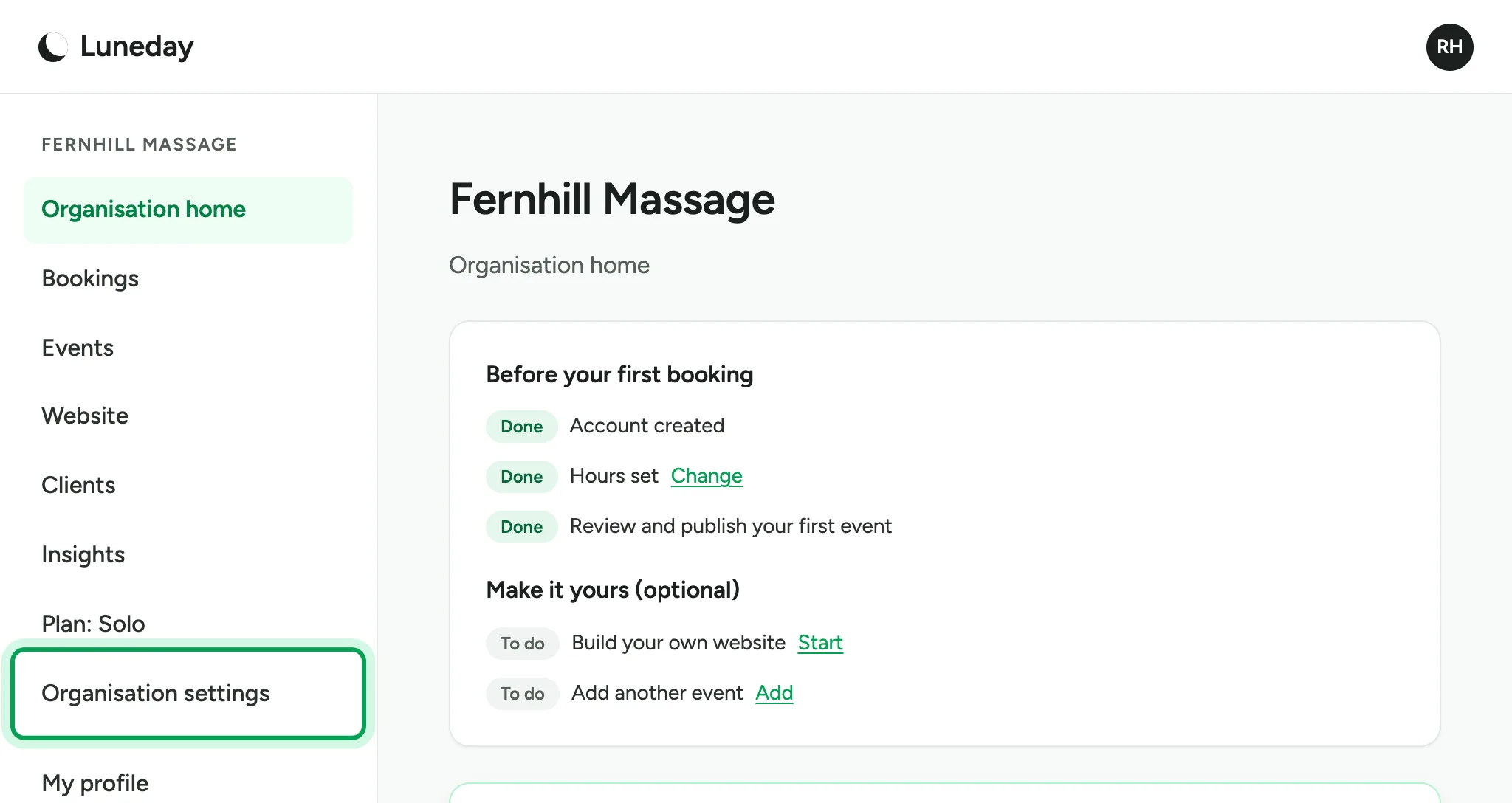
Choose Organisation settings.
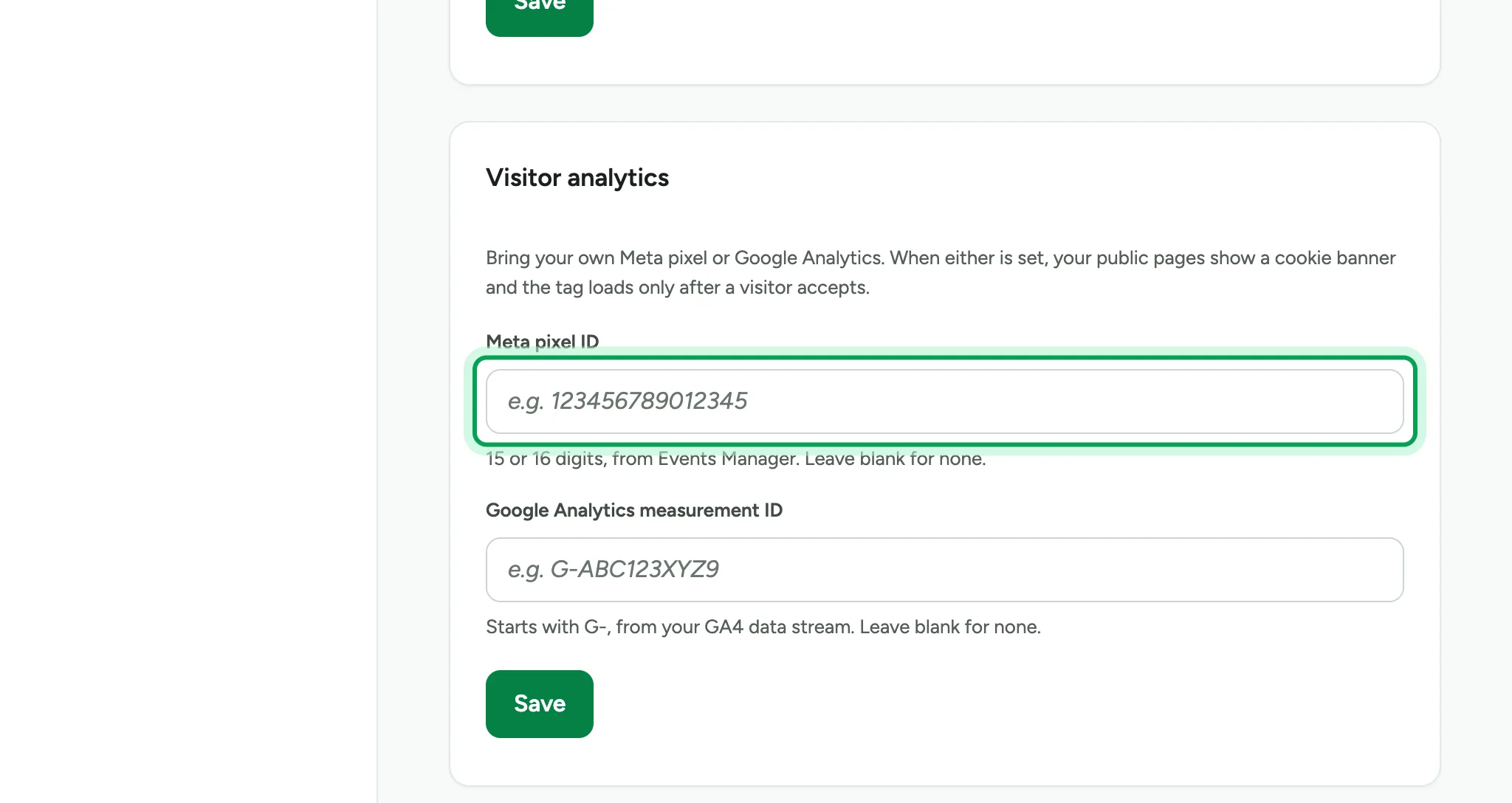
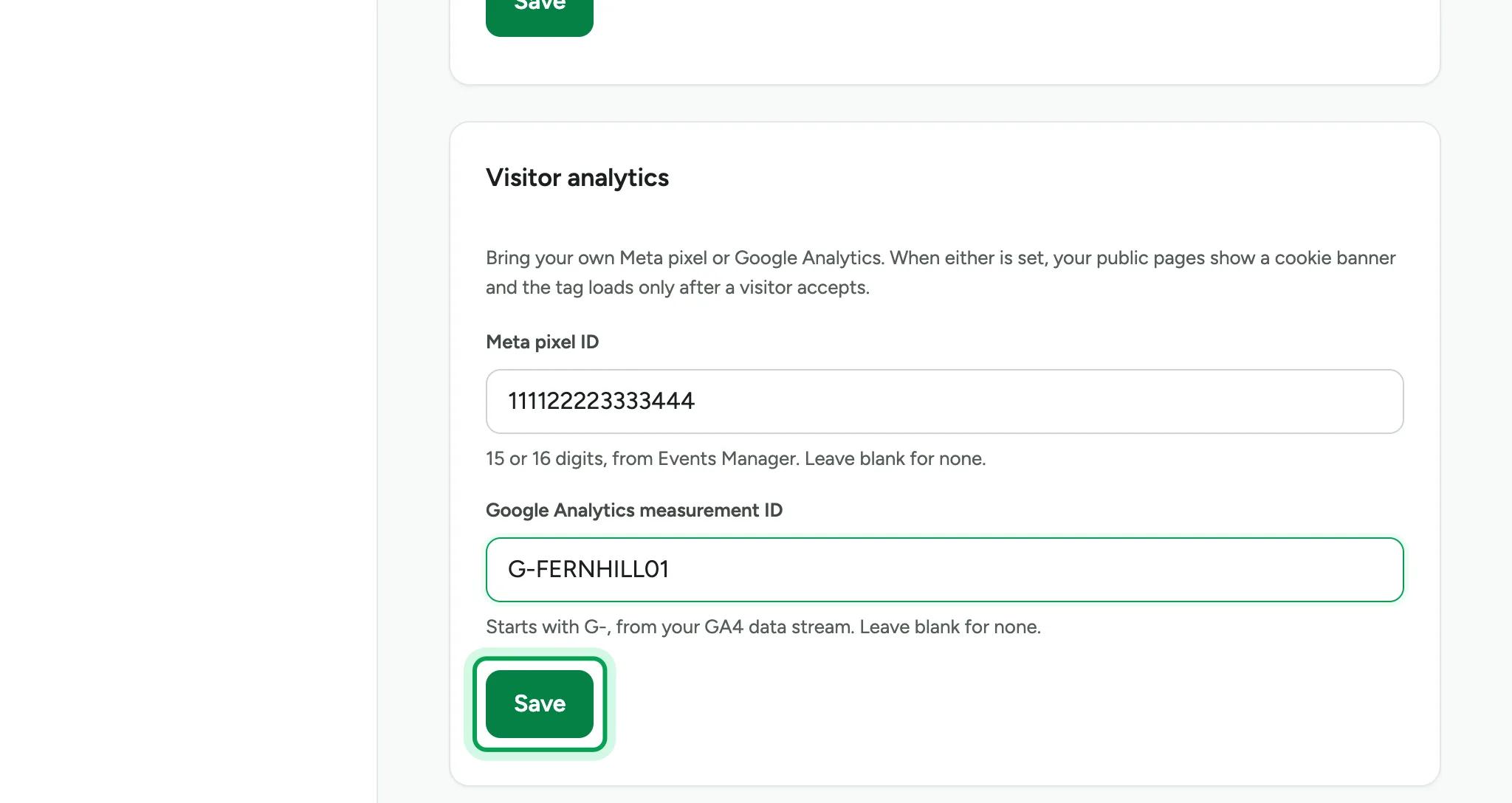
Scroll down to Visitor analytics. Under Meta pixel ID, type your pixel's ID from Meta's Events Manager.
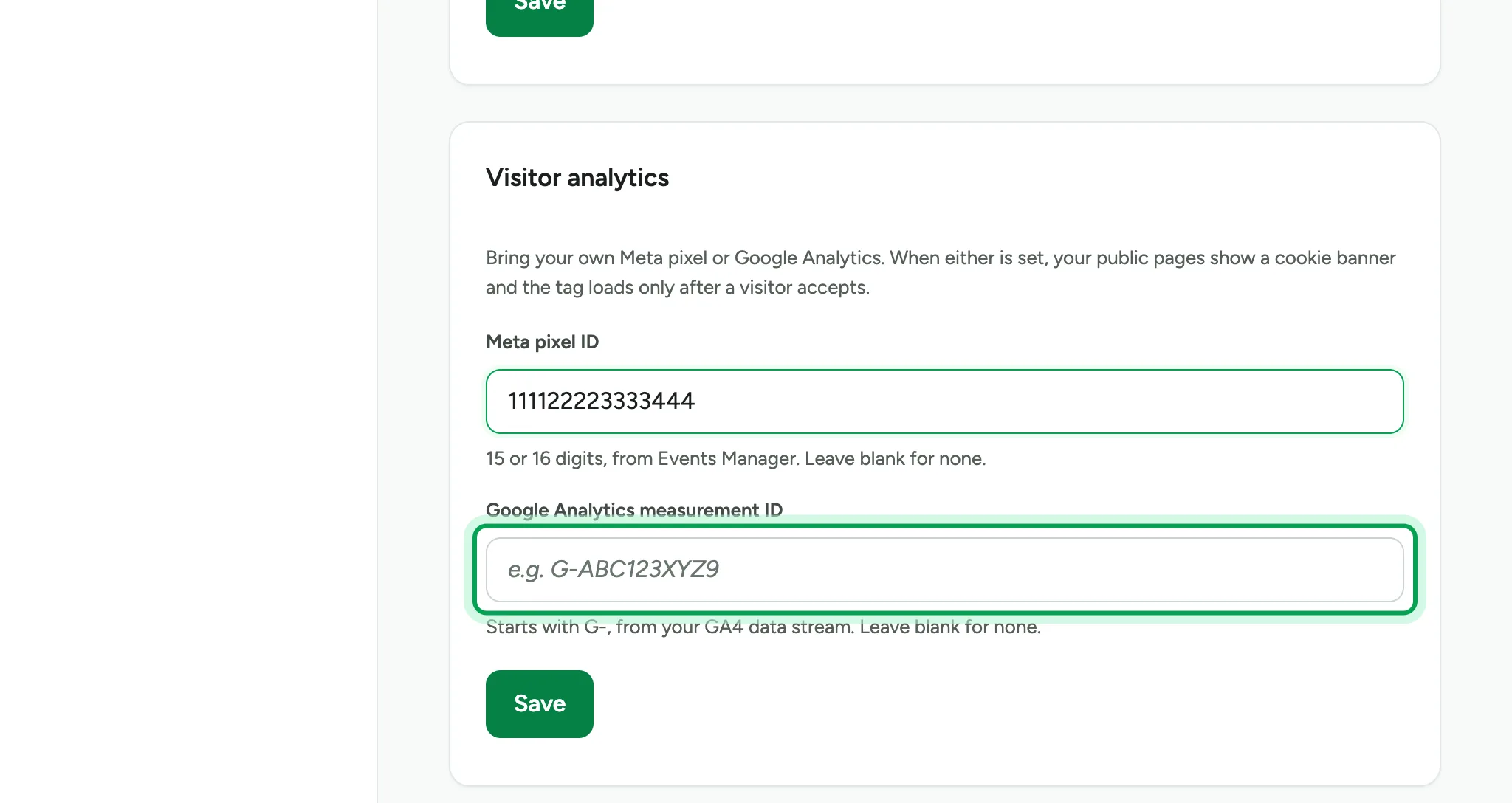
Under Google Analytics measurement ID, type the ID that starts with G-. It comes from your GA4 data stream.
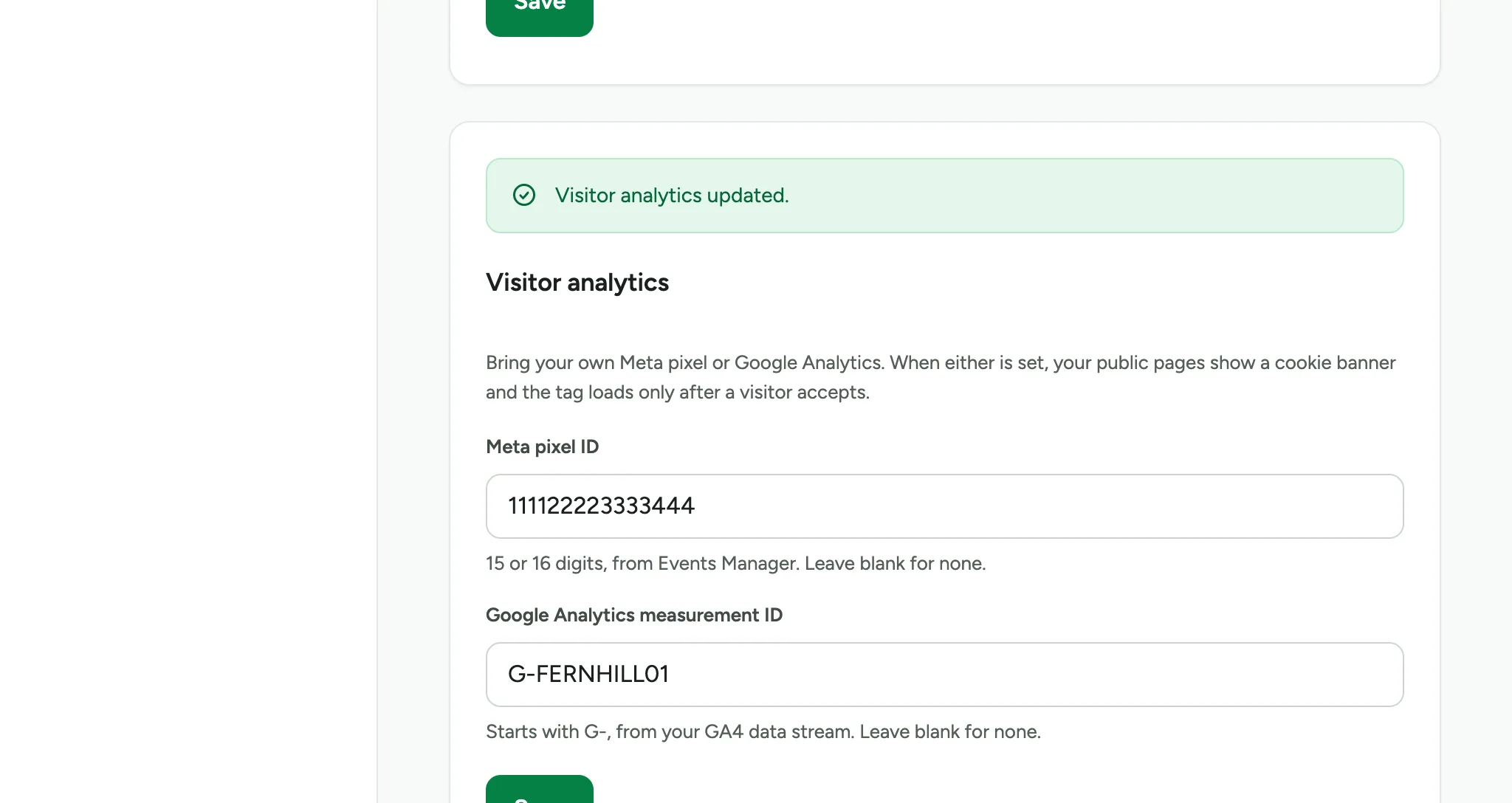
Fill in one or both, then choose Save.
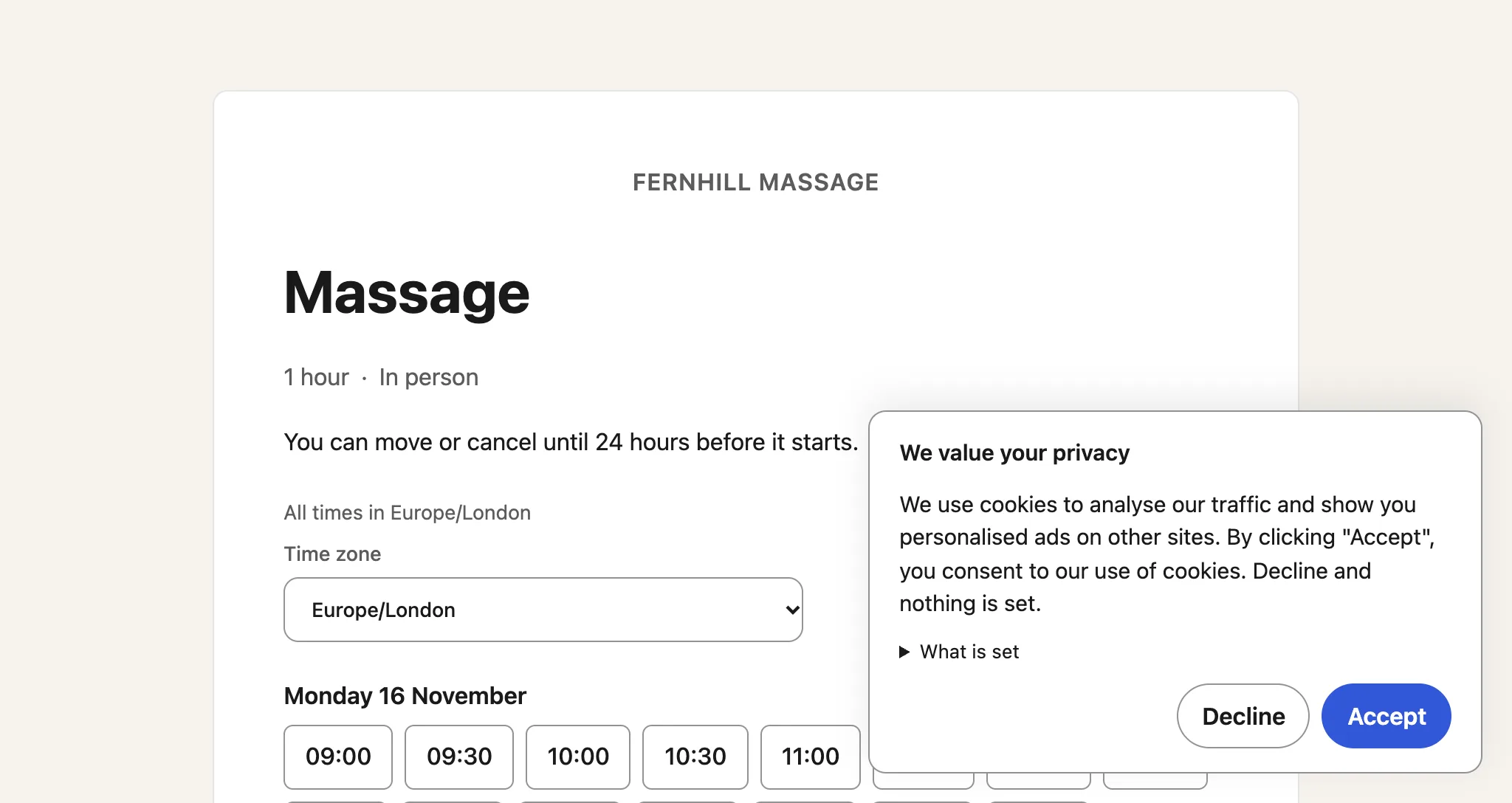
Your public pages now show a cookie banner.
Clients choose Accept or Decline. Your tags load only after they accept.
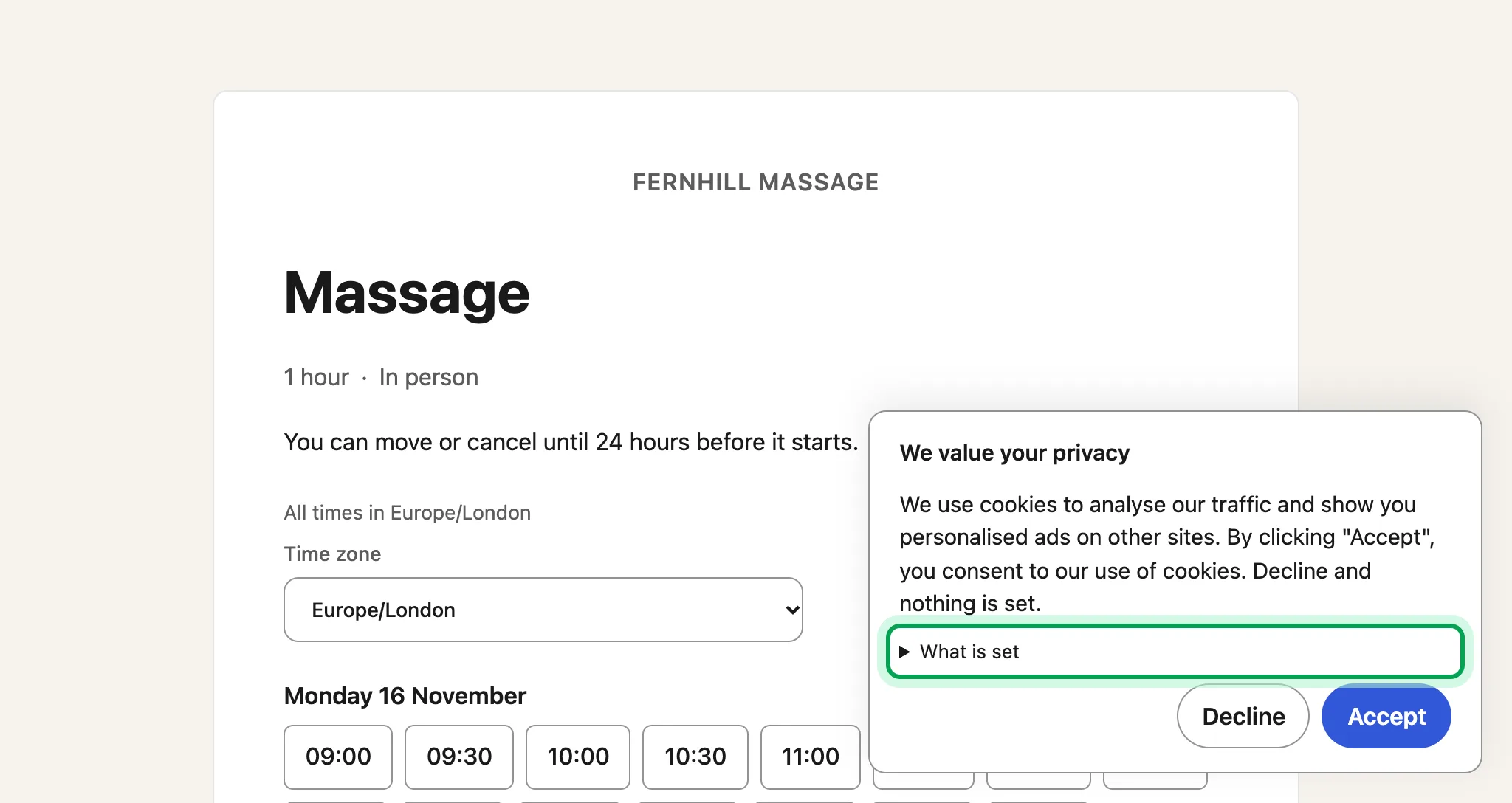
Clients can choose What is set to see each cookie and who it is sent to.
Updated 15 November 2026.
Related: Build your website · Use your own domain
Still stuck? Email hello@luneday.com.