Invite-only beta Luneday is open to invited hosts while we finish building. Ask for an invite

← All help

Read your insights

See how busy you are, and who is taking the bookings.

Steps

  1. Insights shows how your practice is doing.
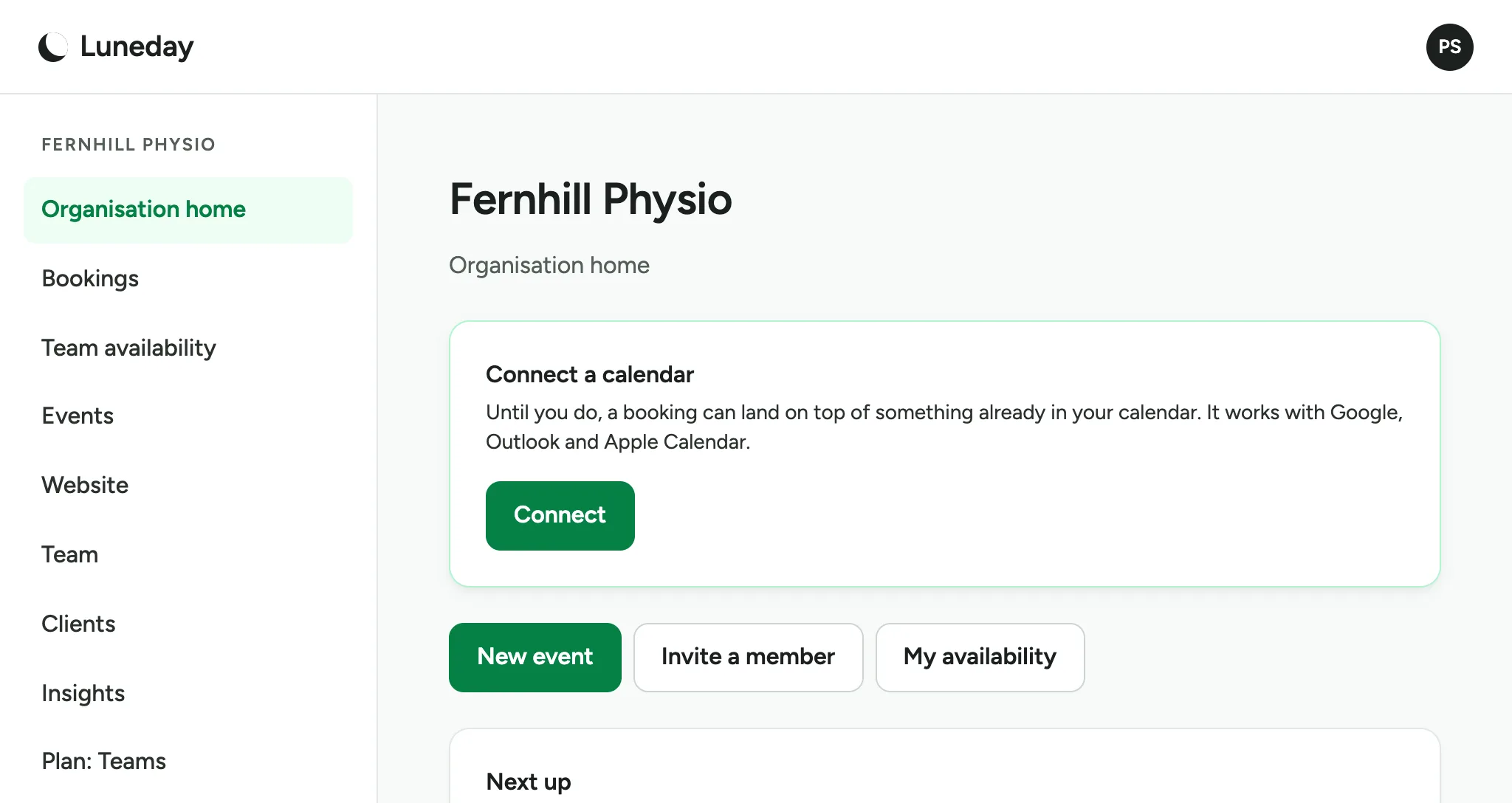
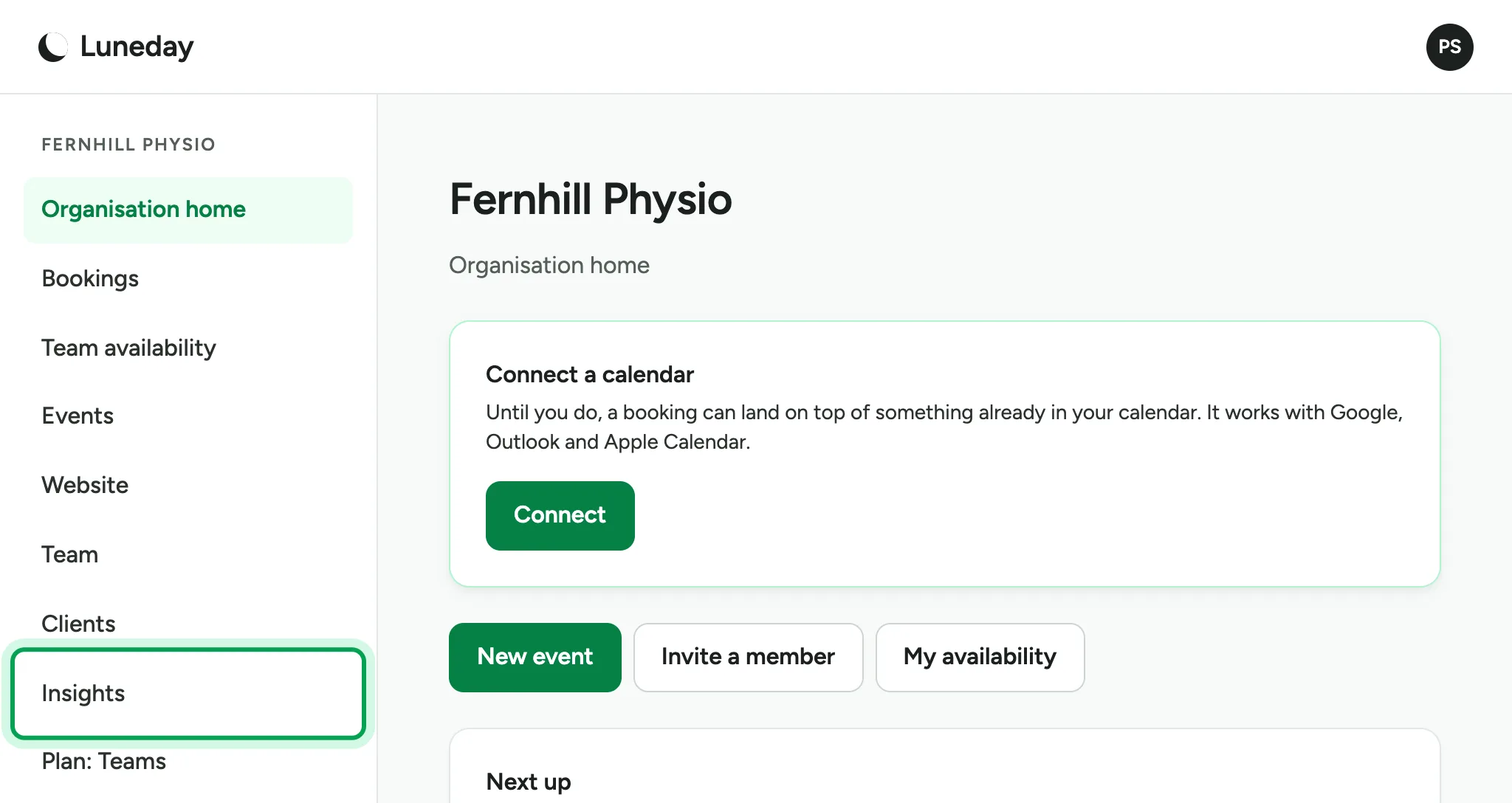
    The organisation home page, with Insights in the menu.
  2. Choose Insights.

    The organisation home page, with Insights ringed in the menu.
  3. Insights opens on the last 30 days, for your whole team.
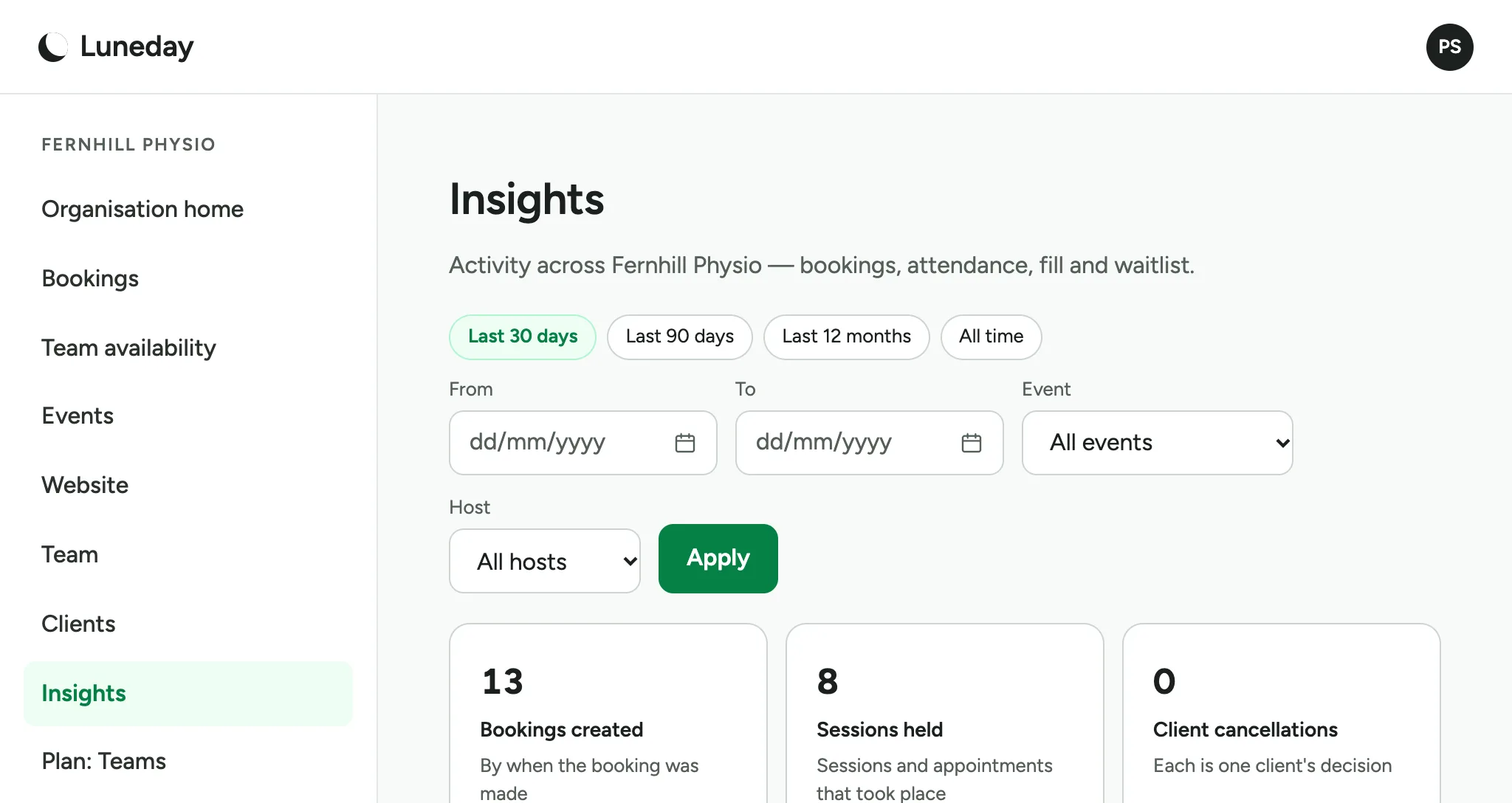
    The Insights page with Last 30 days chosen and All hosts in the Host list.
  4. The first numbers are bookings created, sessions held and cancellations.
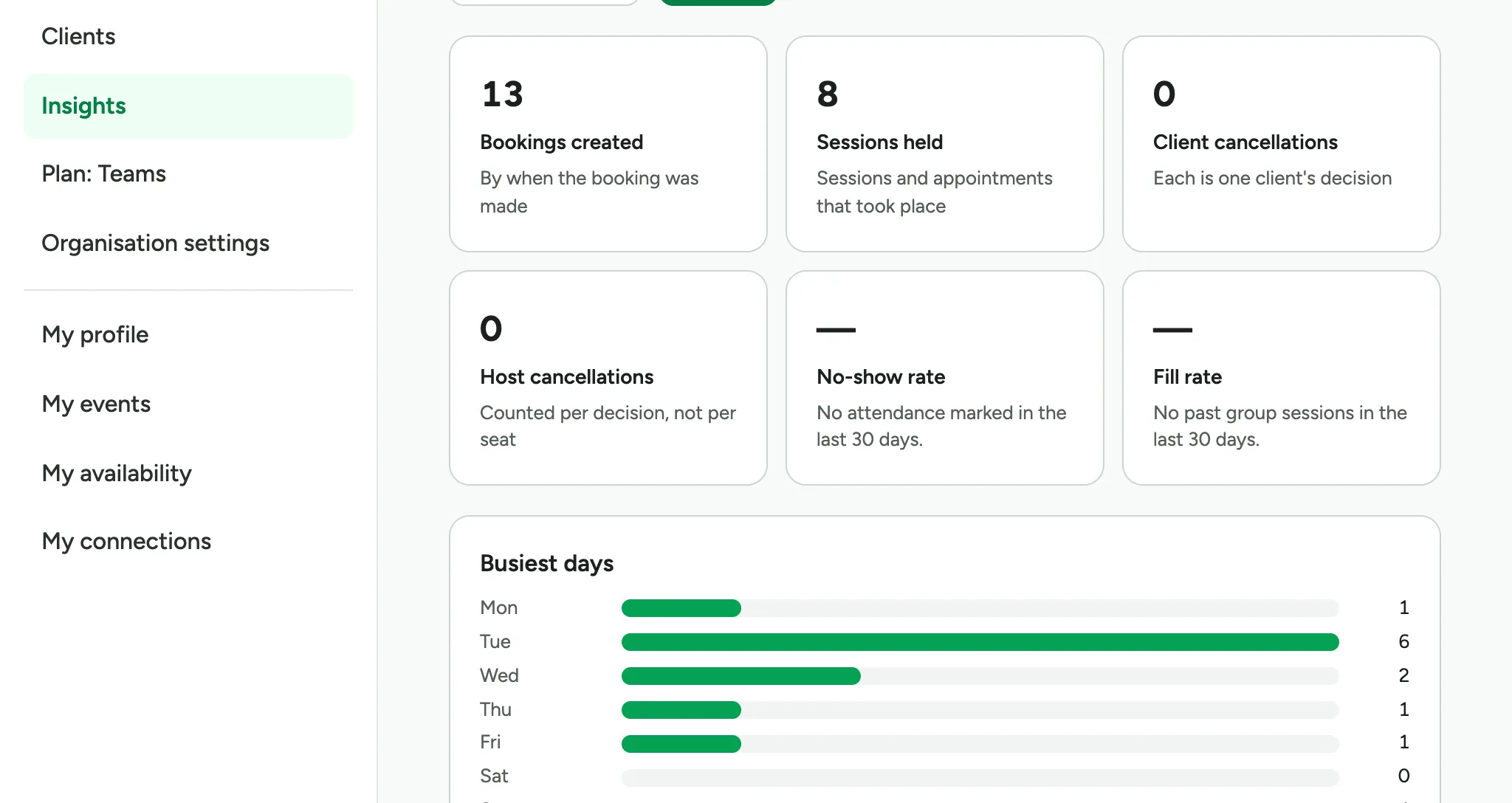
    Six number tiles, including 13 bookings created, 8 sessions held and 0 client cancellations.
  5. Busiest days and Busiest times show when your clients come.
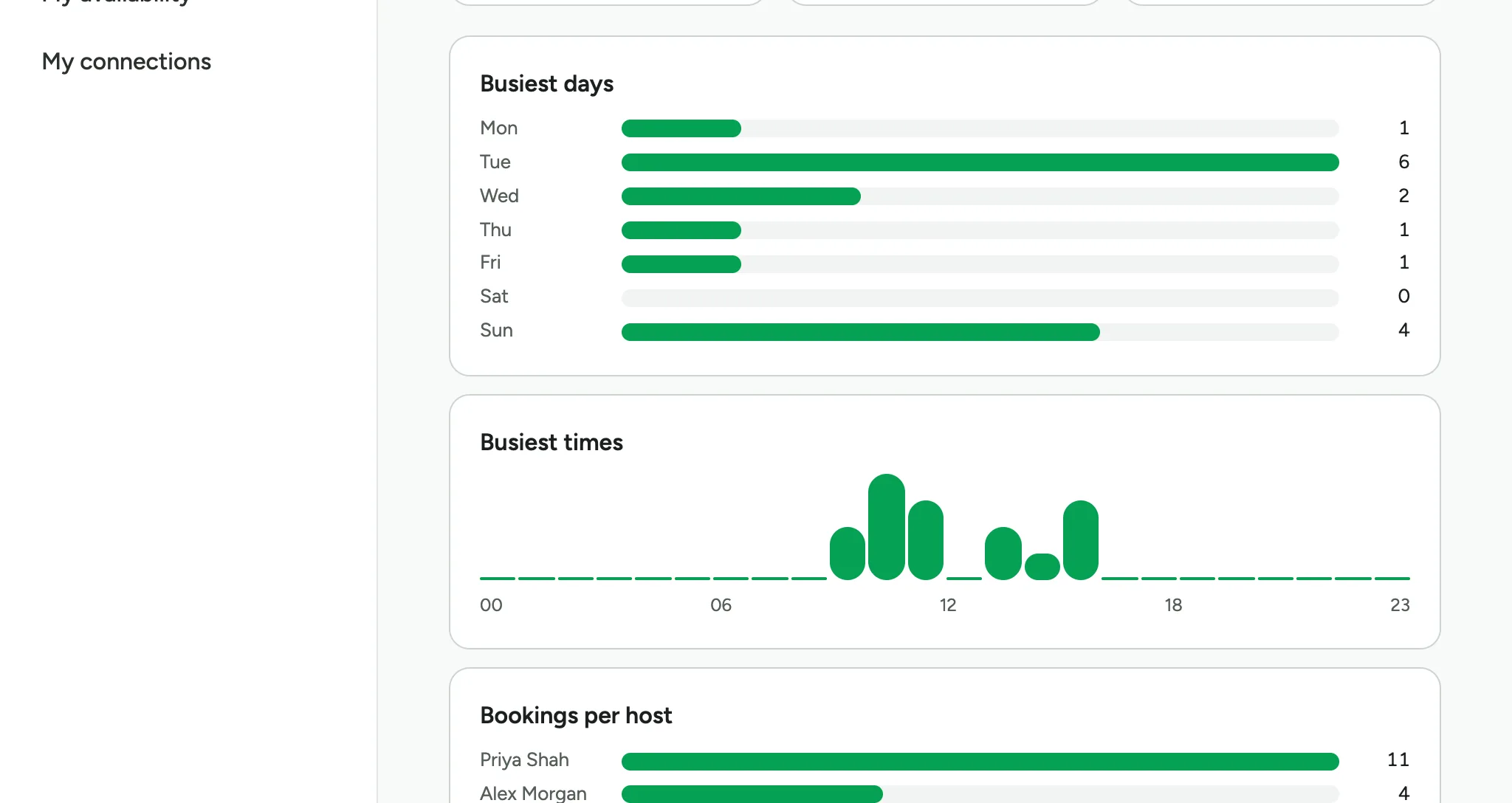
    A bar for each day of the week and a chart of bookings by hour.
  6. Bookings per host shows how the work is shared.
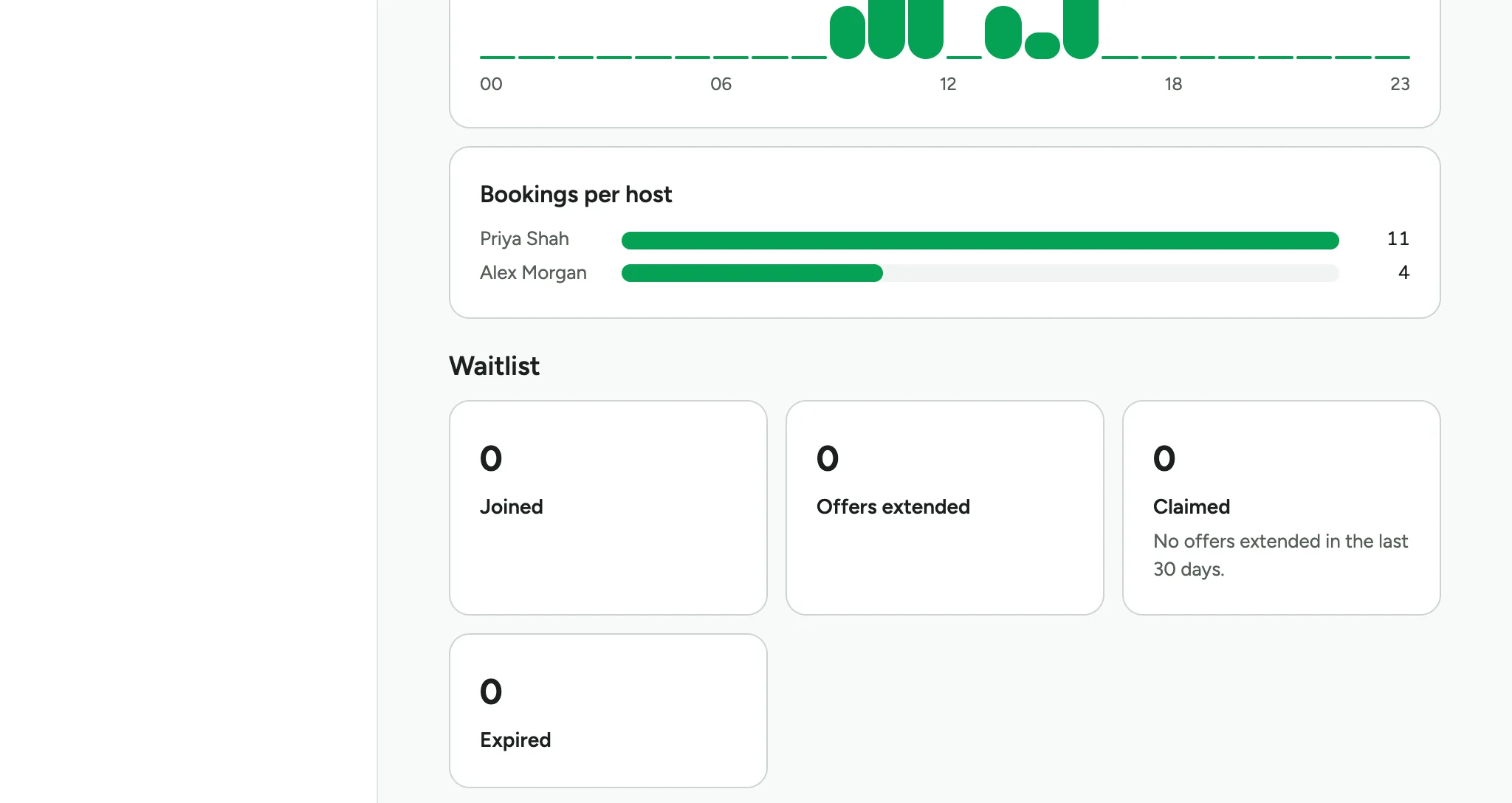
    A bar for each host, Priya Shah and Alex Morgan, above the Waitlist numbers.
  7. To see one person's numbers, choose them under Host.
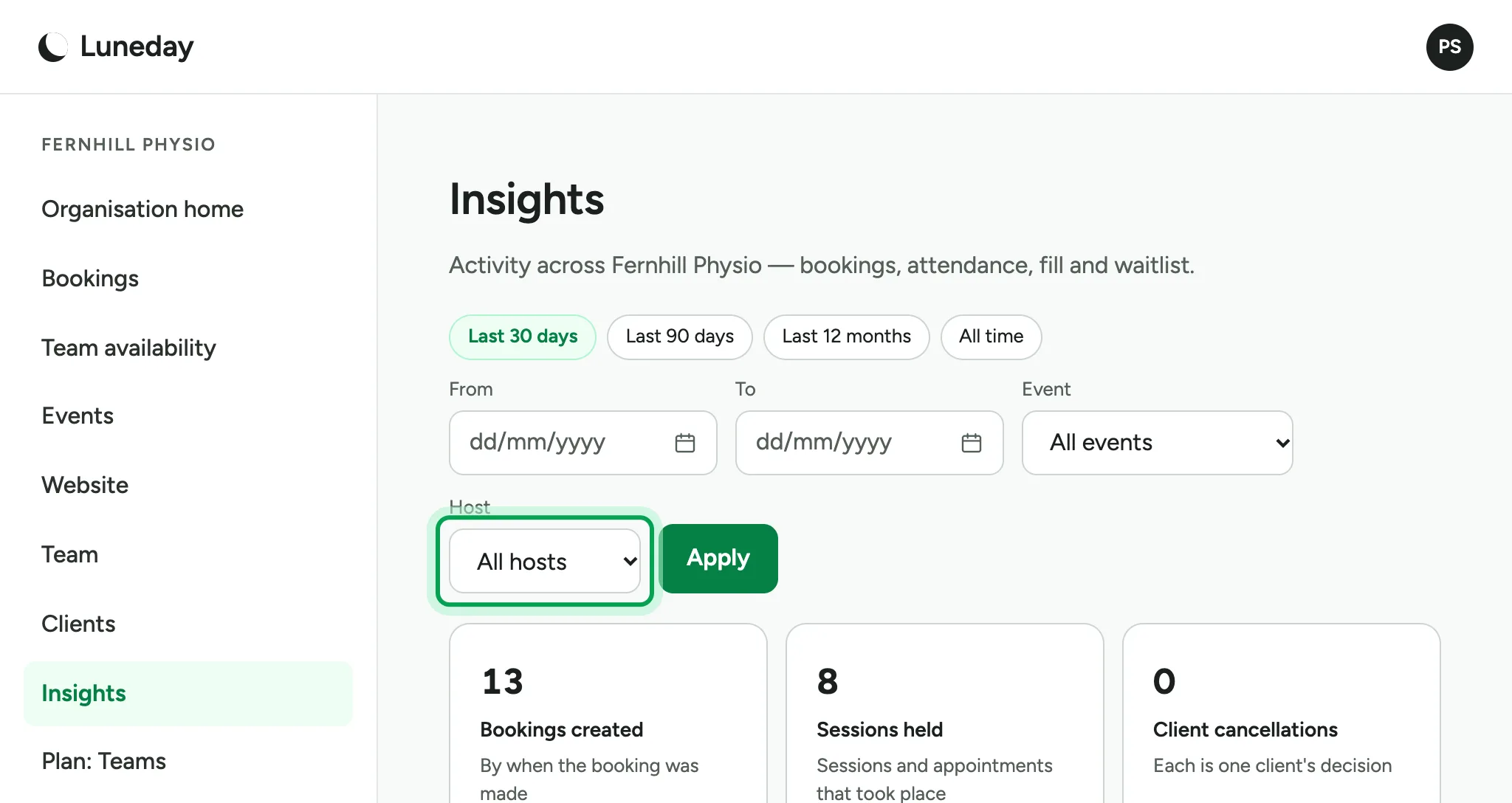
    The filters, with the Host list, showing All hosts, ringed.
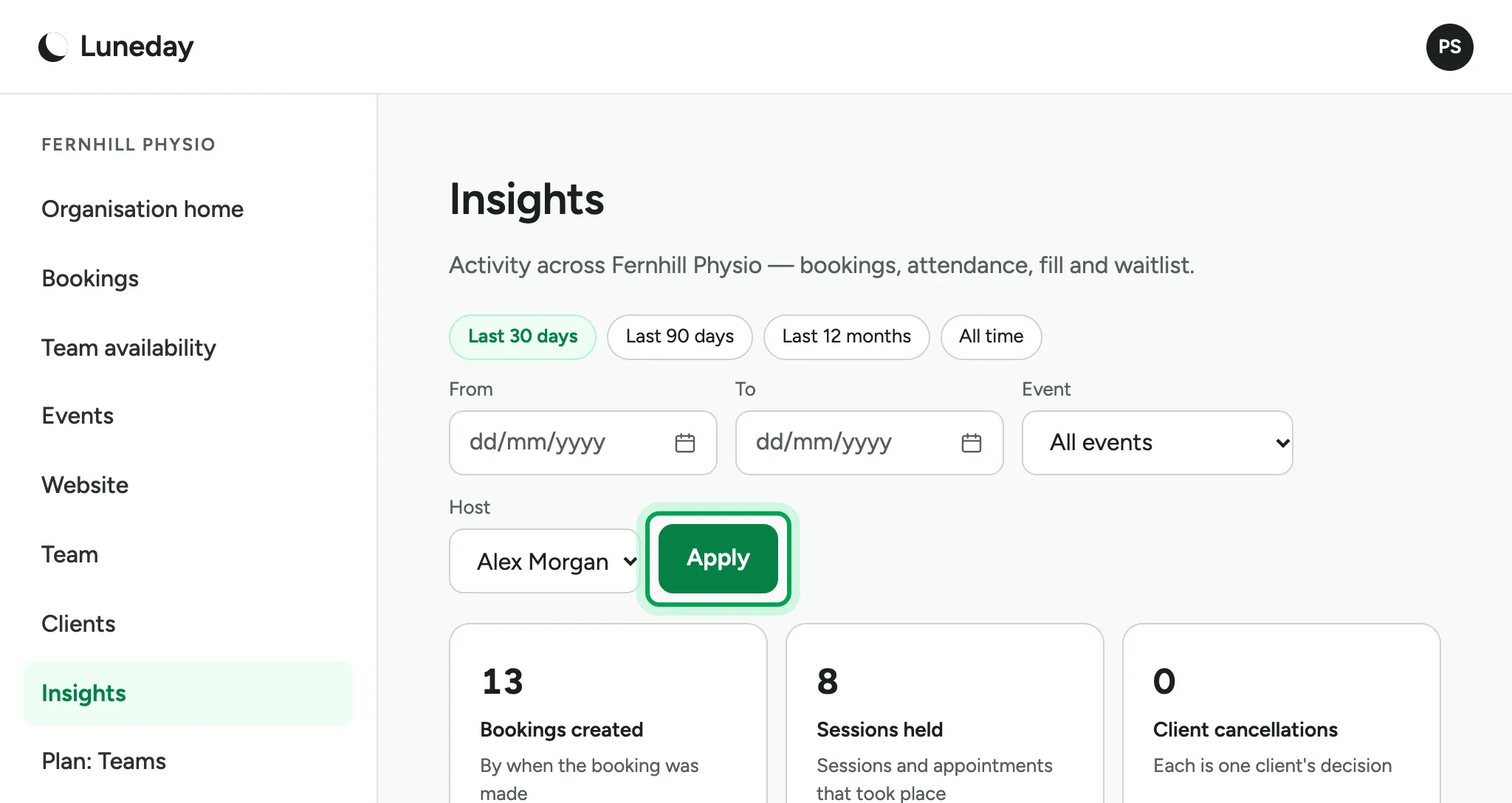
  8. Choose Apply.

    Alex Morgan chosen under Host, with Apply ringed.
  9. Every number now counts that person's work alone.
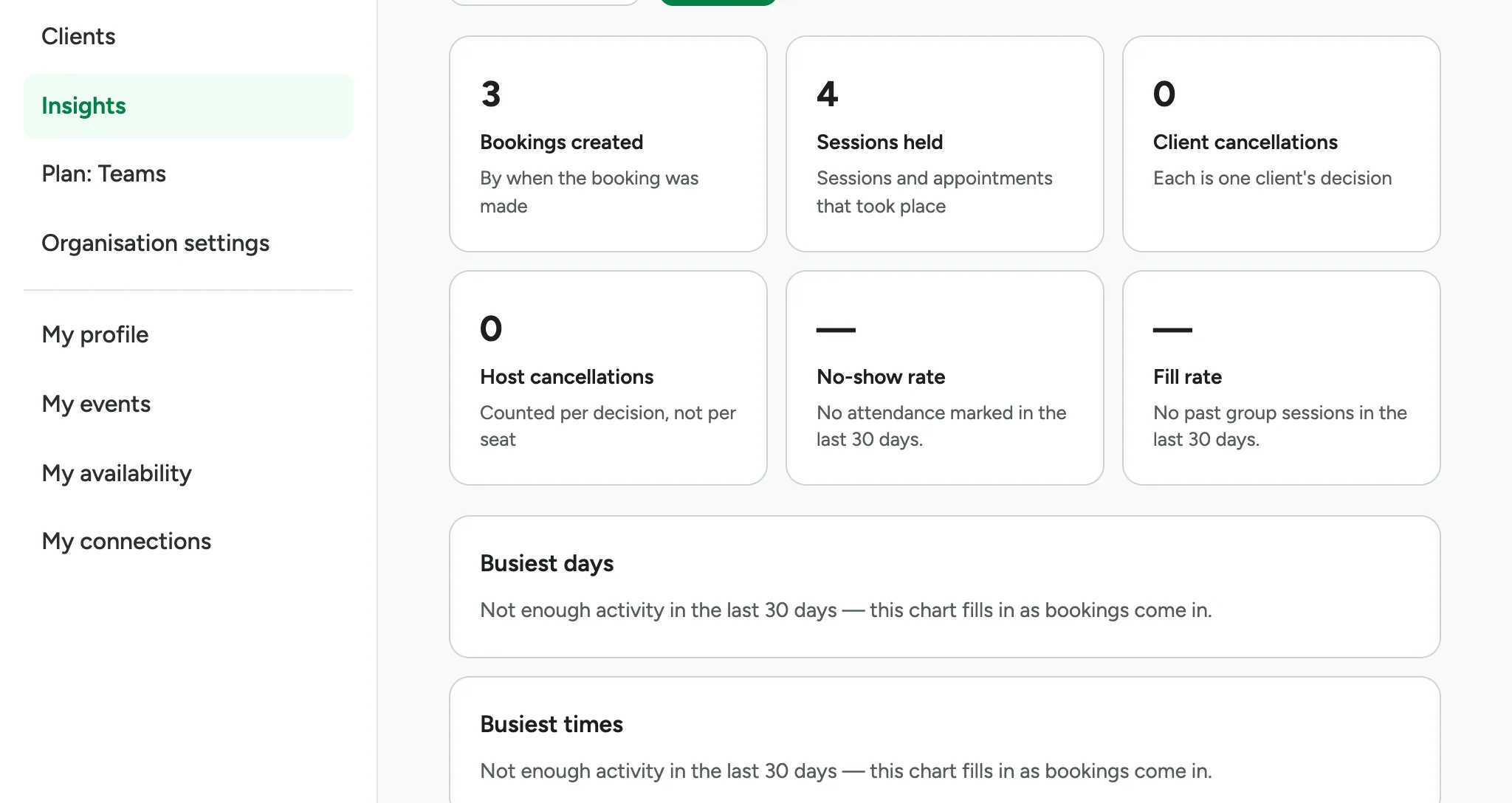
    Smaller numbers in the first two tiles, 3 bookings created and 4 sessions held.
  10. To look further back, choose Last 90 days. The person you chose stays chosen.
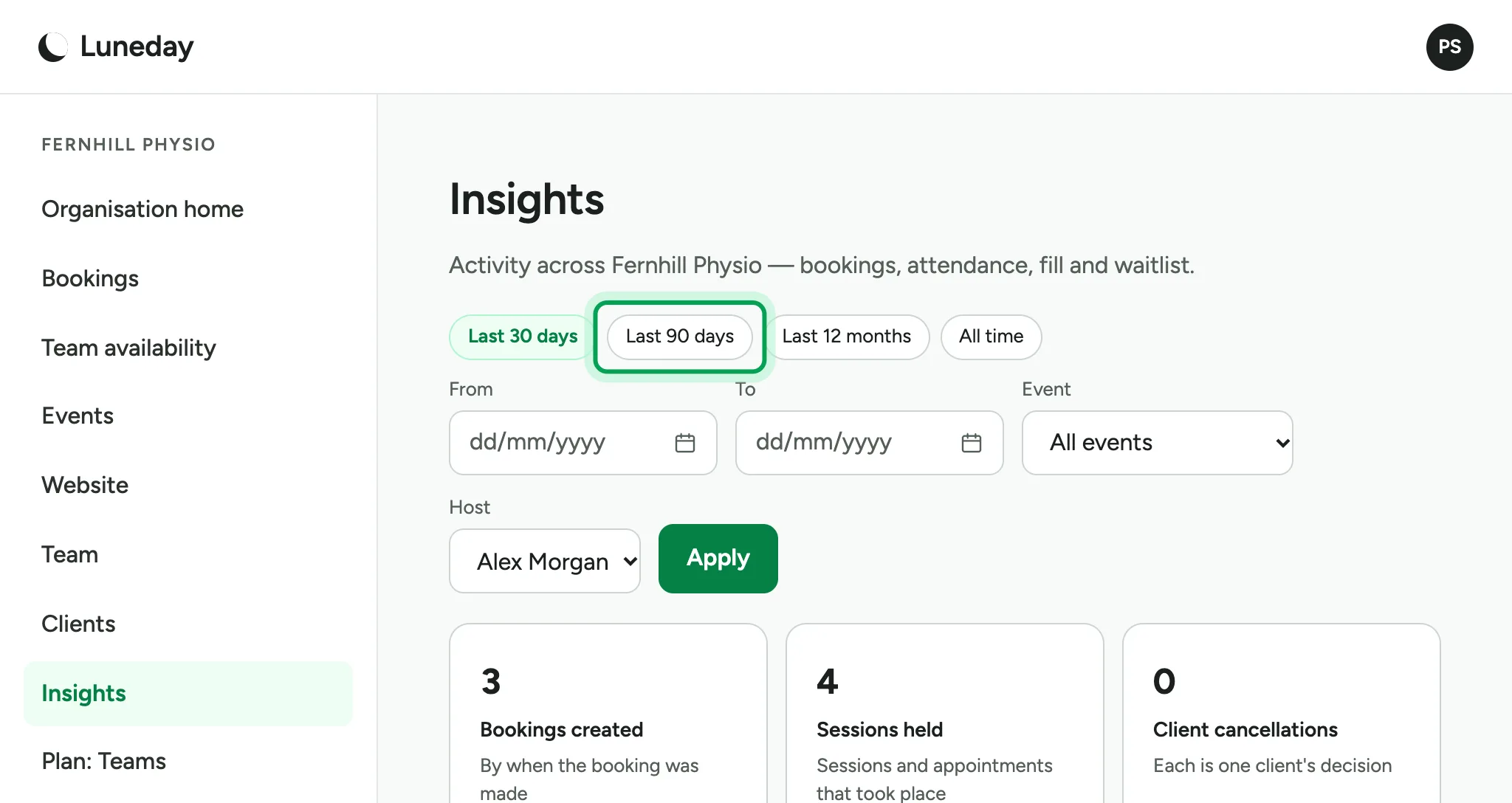
    The date choices, with Last 90 days ringed and Alex Morgan still under Host.
  11. At the foot of the page, choose Download CSV for a spreadsheet. It has no client names or emails.
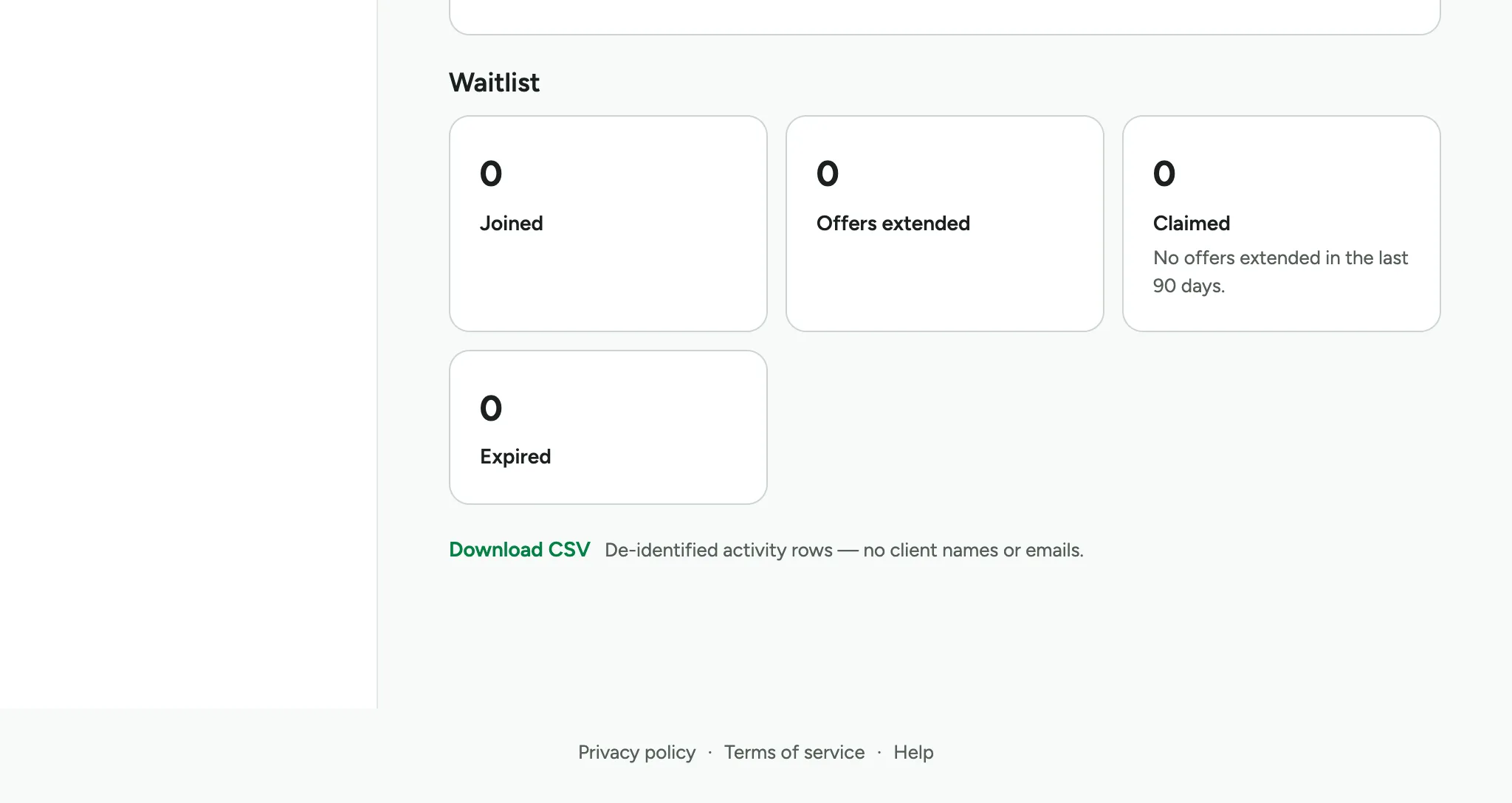
    The Waitlist tiles, with a Download CSV link below them.

Updated 15 November 2026.

Related: Invite your team and set roles · Hand a booking to someone else

Still stuck? Email hello@luneday.com.