Invite-only beta Luneday is open to invited hosts while we finish building. Ask for an invite

← All help

Look after your clients

Find a client, see their bookings and keep notes.

Steps

  1. Choose Clients in the sidebar. Everyone who has booked with you is listed there.
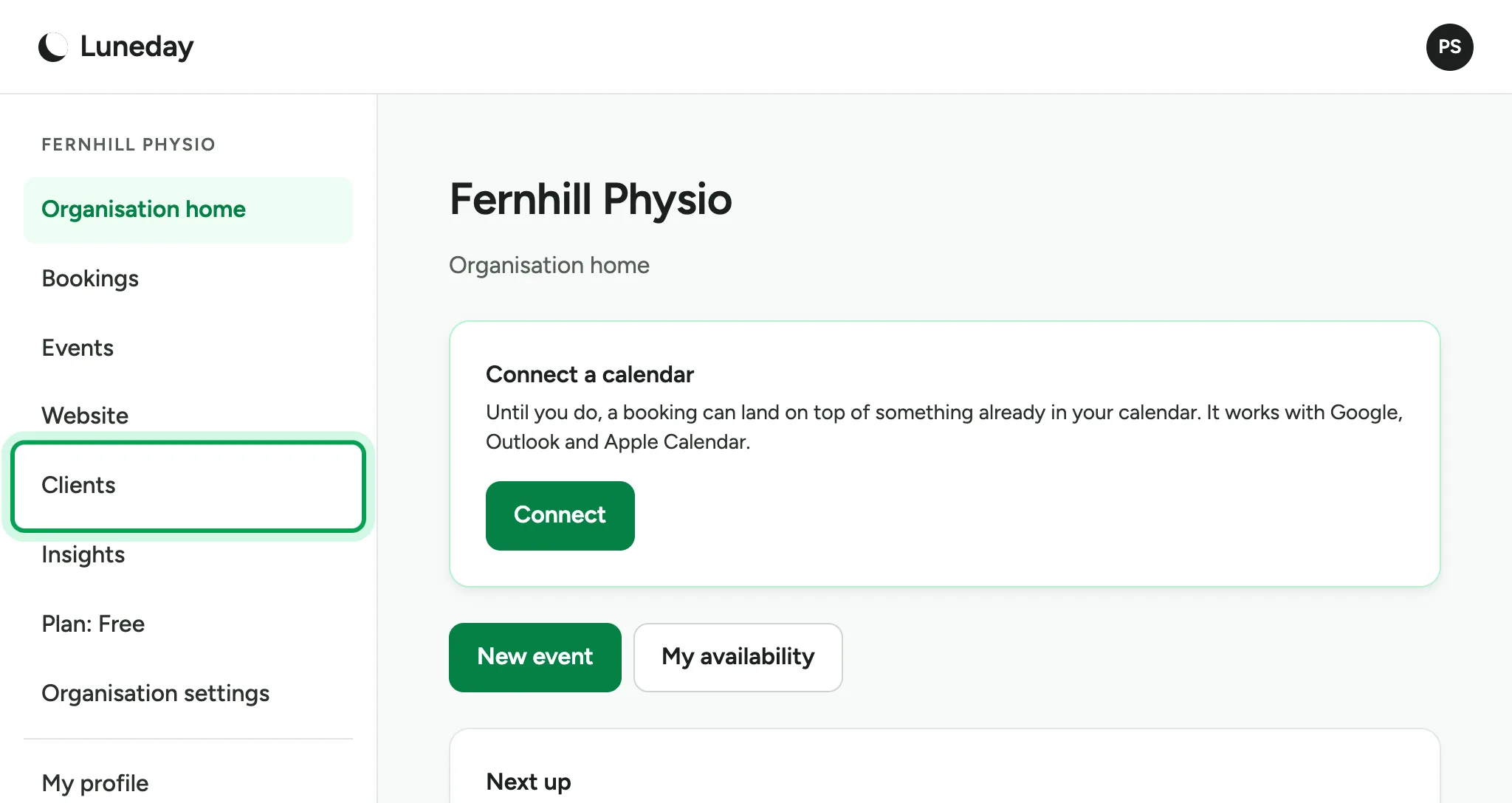
    The organisation home, with Clients ringed in the sidebar.
  2. Each client shows how many bookings they have made, and the dates of their first and last booking.
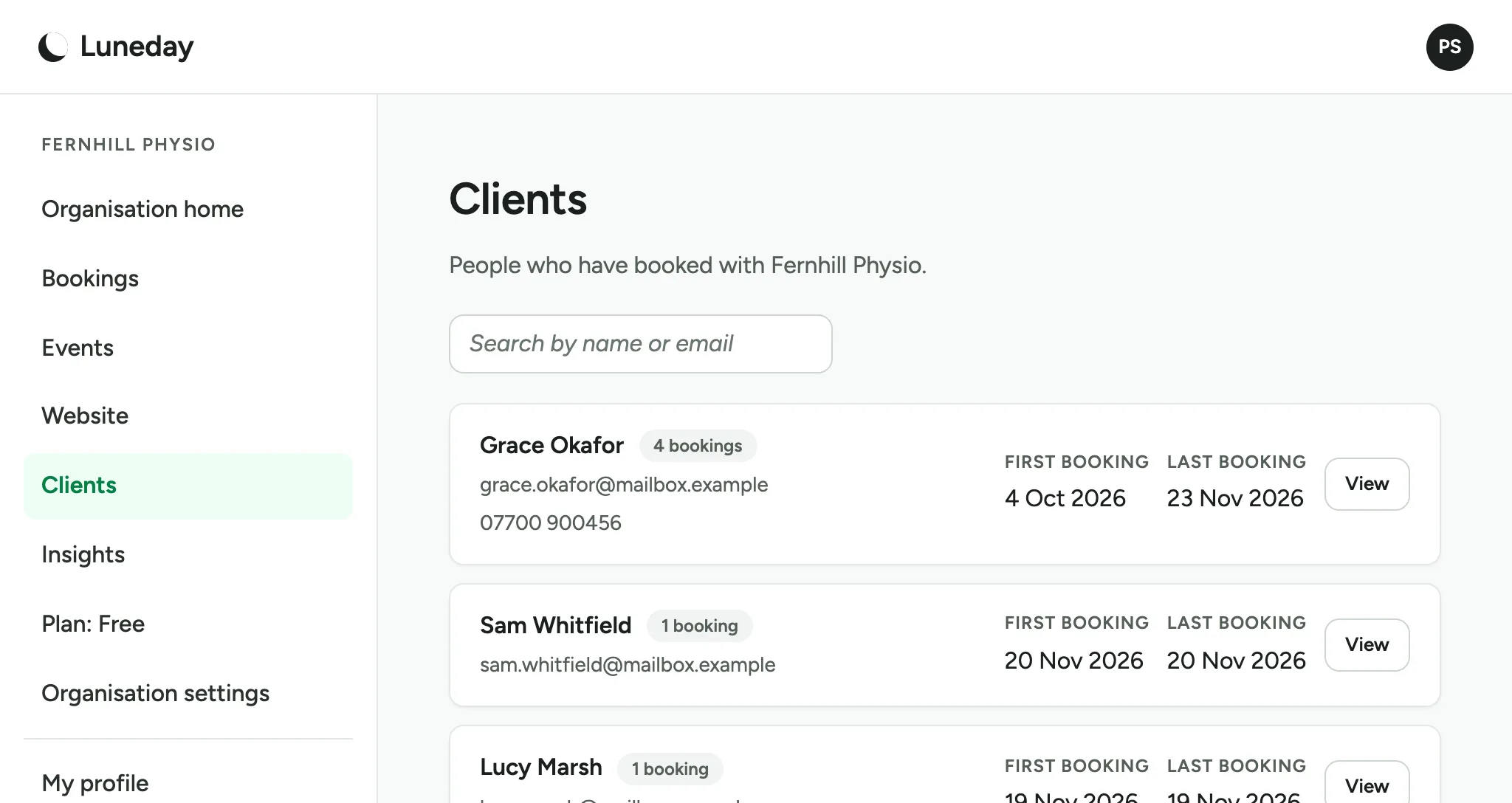
    The Clients page, listing three clients with their booking counts, first and last booking dates, and a View button each.
  3. To find someone, type their name or email in the search box and press Enter.
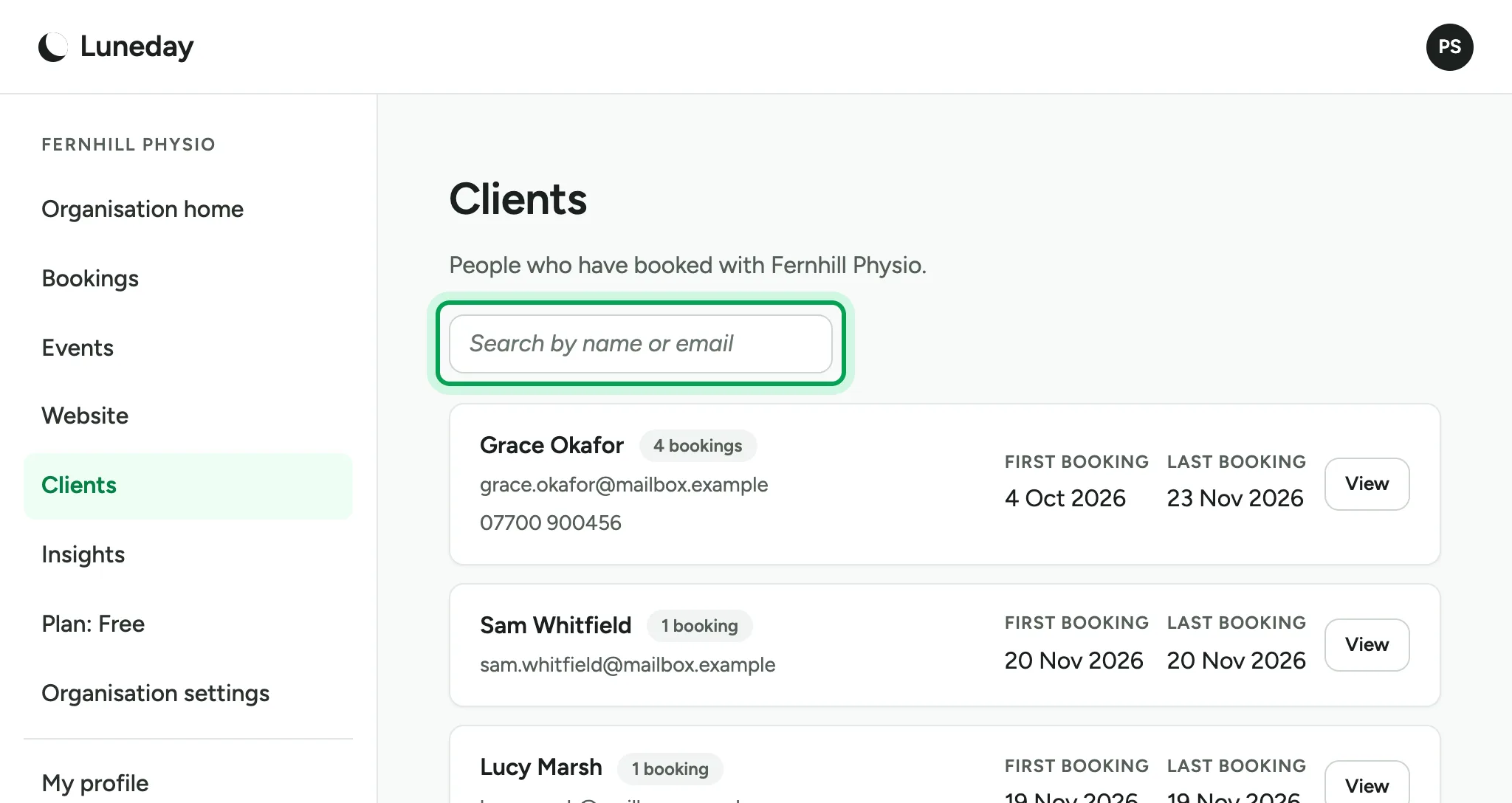
    The Clients page, with the Search by name or email box ringed.
  4. To save your clients to a file, choose Download CSV under the list.
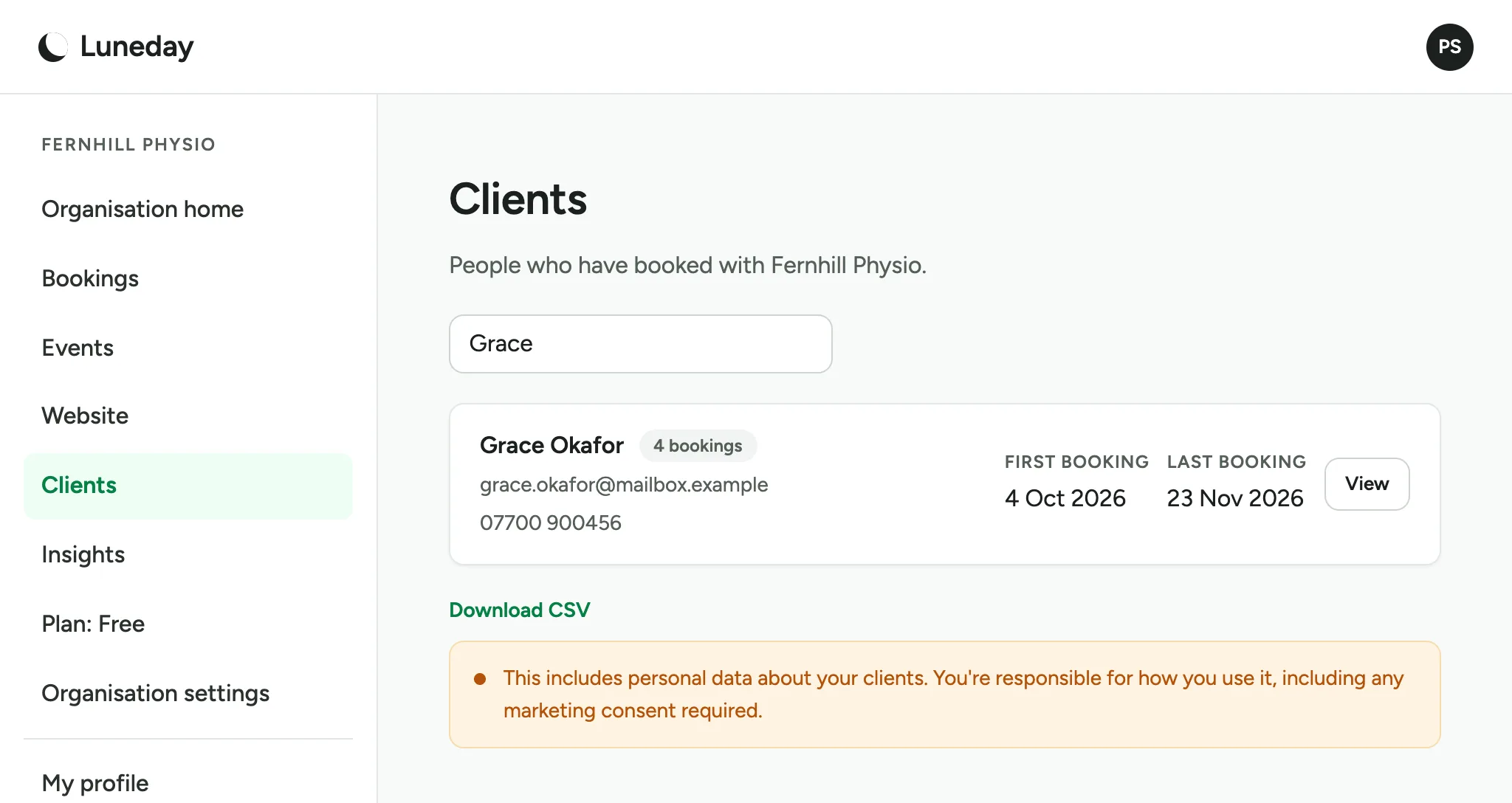
    A search for Grace showing one client, with the Download CSV link and a note about personal data below the list.
  5. Choose View beside a client to open their page.
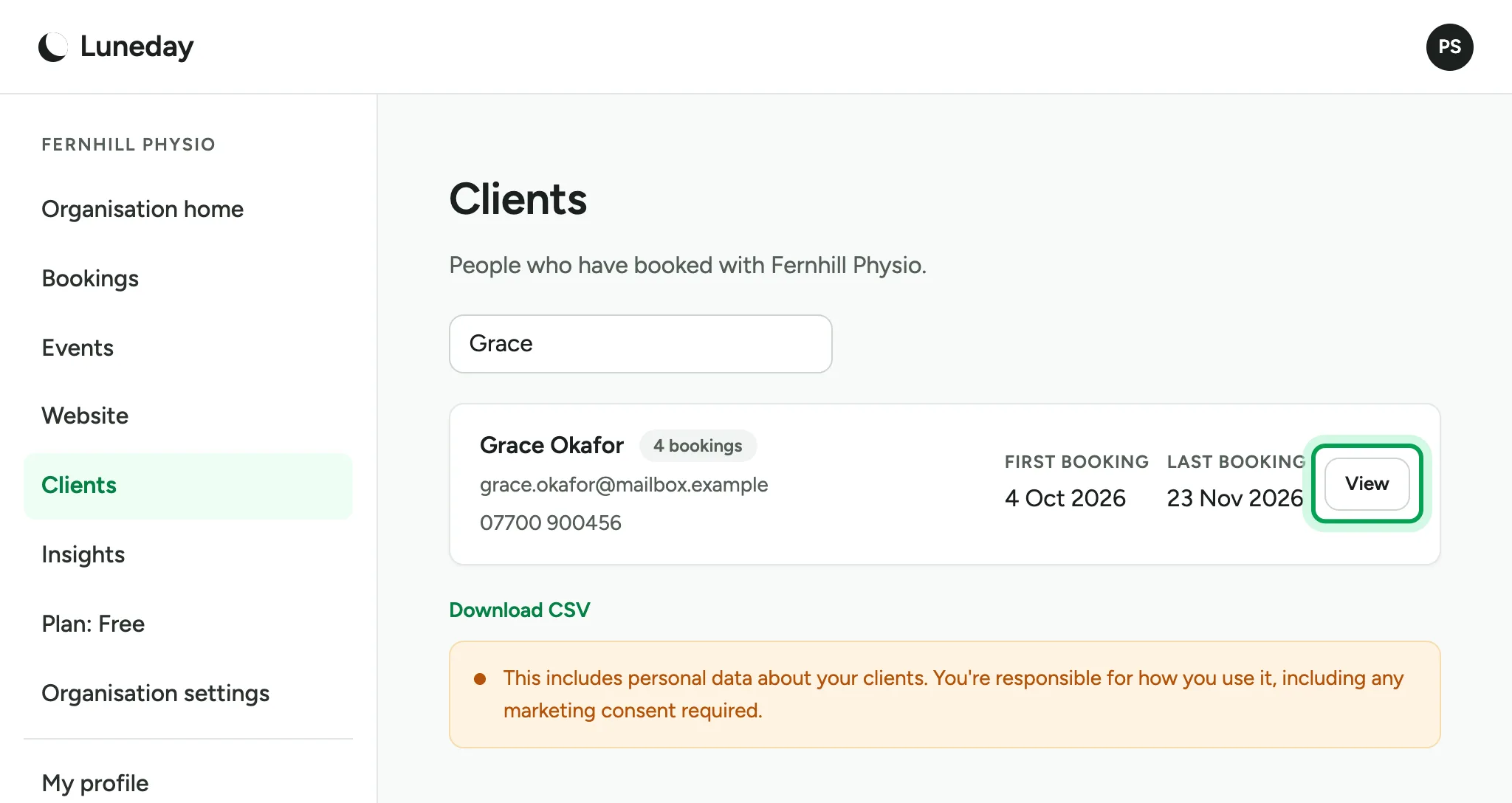
    The search result for Grace Okafor, with her View button ringed.
  6. Their contact details, number of bookings and first and last booking dates are at the top.
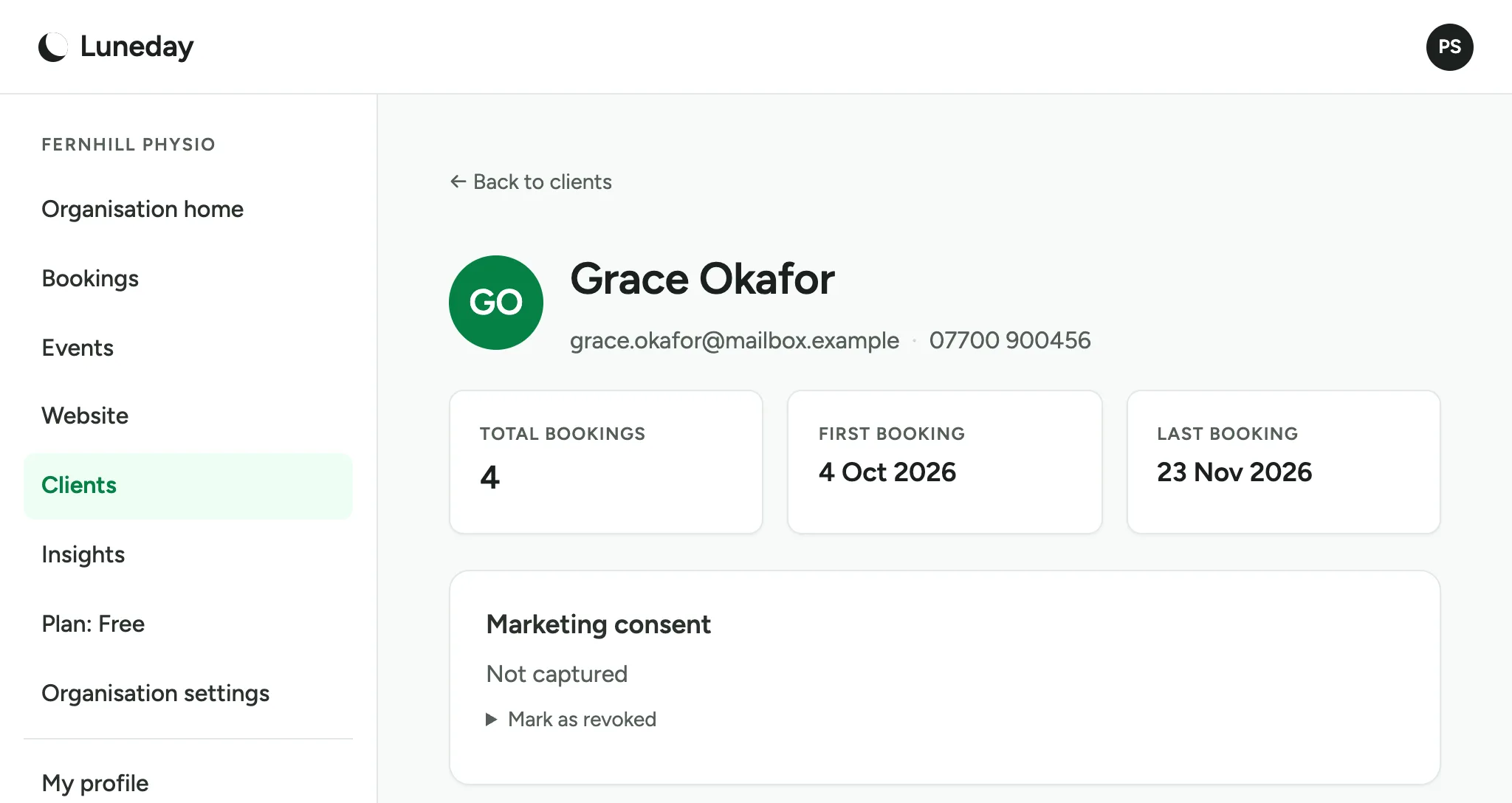
    Grace Okafor's client page, showing her email, phone, 4 total bookings and her first and last booking dates.
  7. Further down, write notes about the client in the Notes box, such as what they prefer.
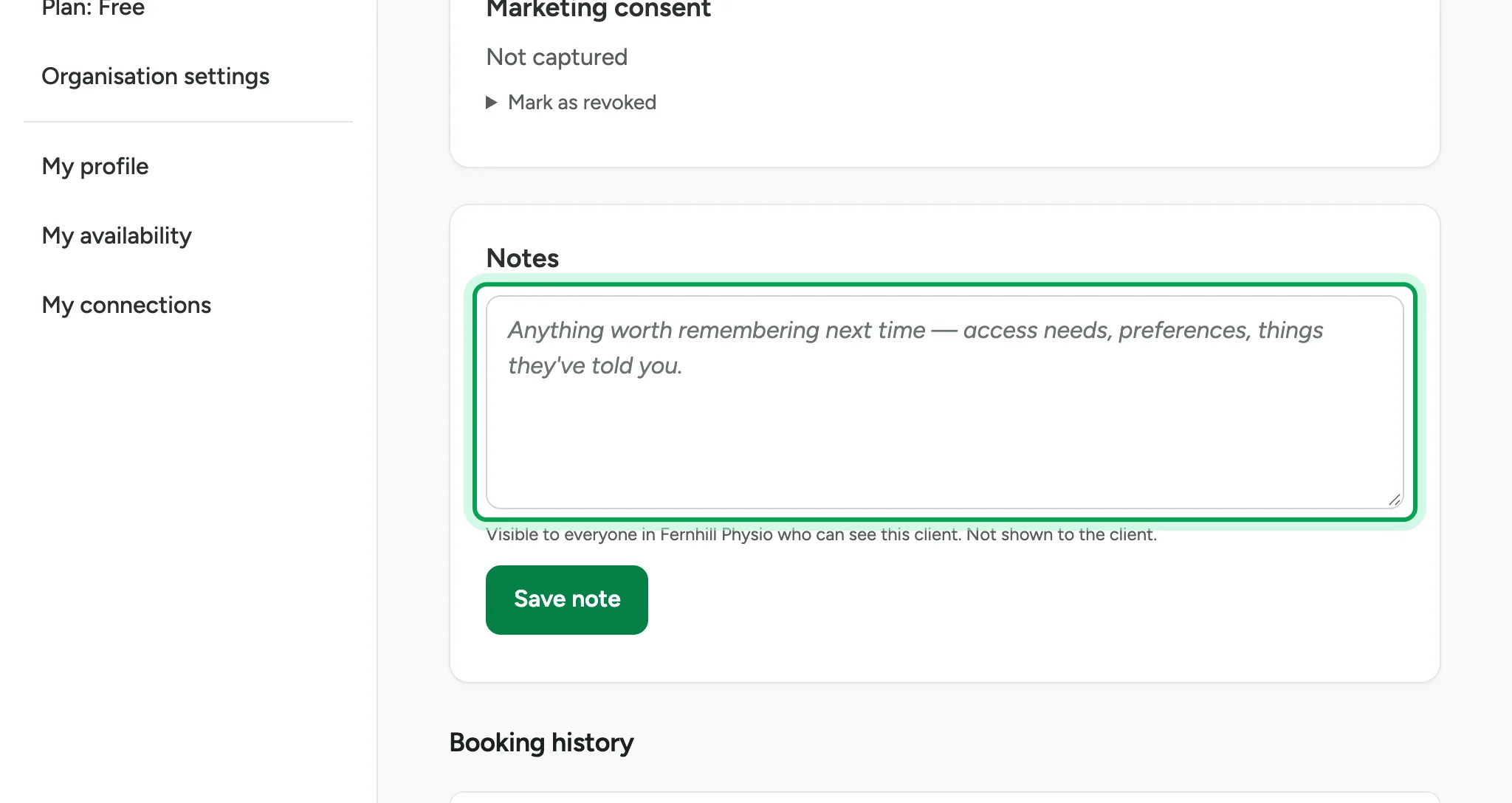
    The empty Notes box, ringed, with the Save note button below it.
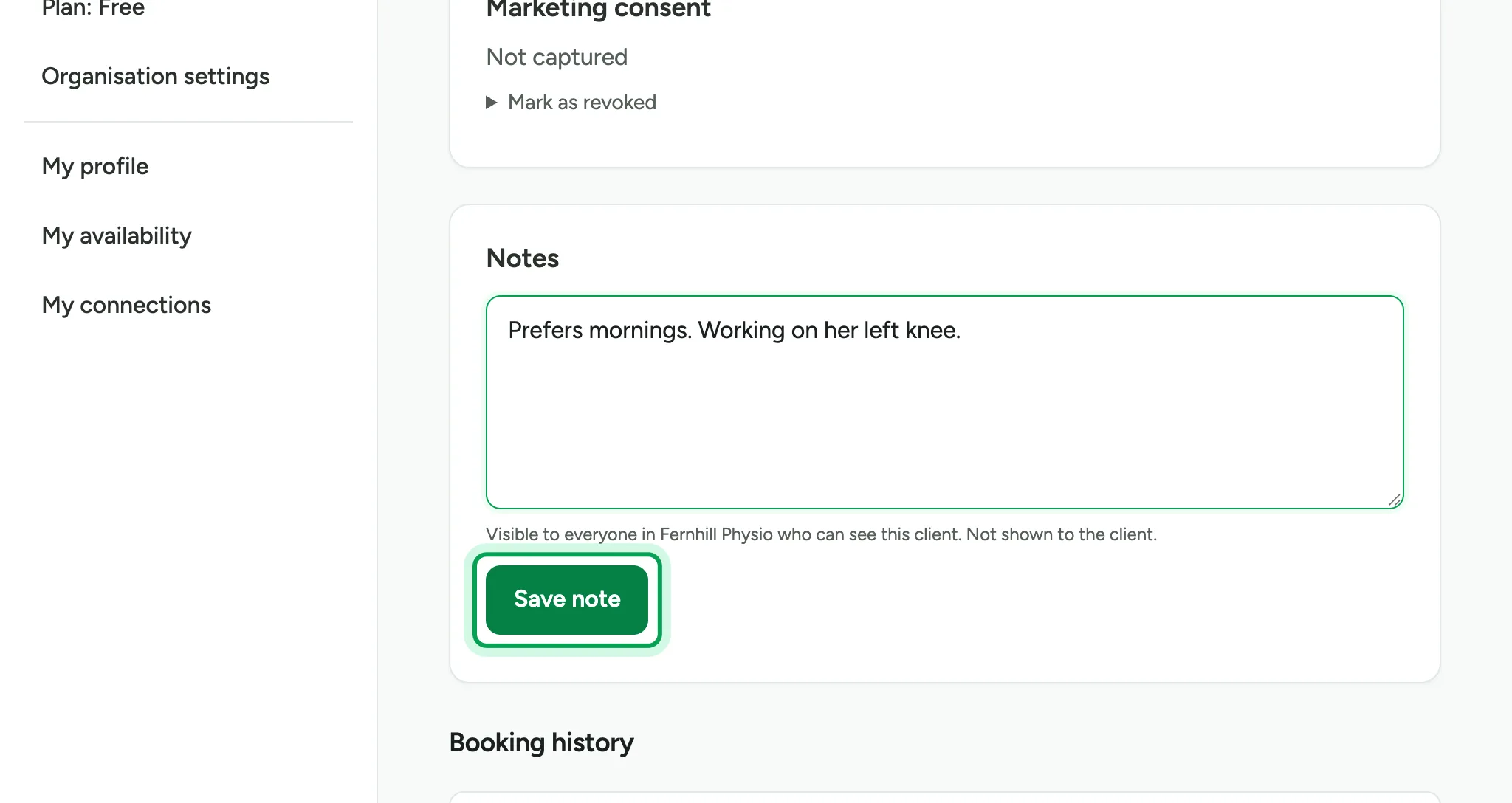
  8. Choose Save note.

    A note about the client's preferences typed in the Notes box, with Save note ringed.
  9. The note is kept for next time. Everyone in your organisation who can see the client can read it. The client never sees it.
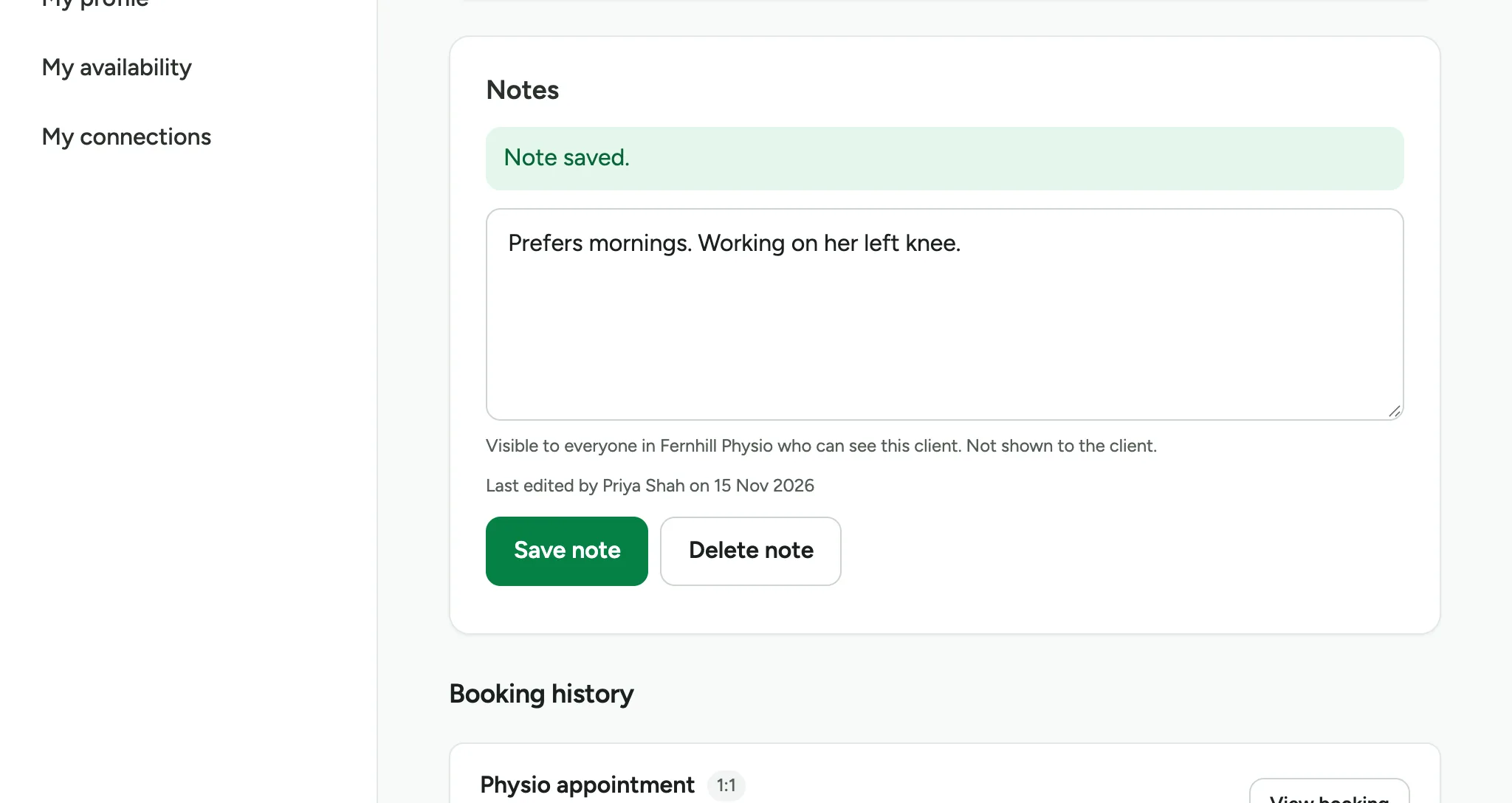
    The Notes box with a Note saved message, who last edited it, and Save note and Delete note buttons.
  10. Under Booking history, each of their bookings is listed. Choose View booking to open one.
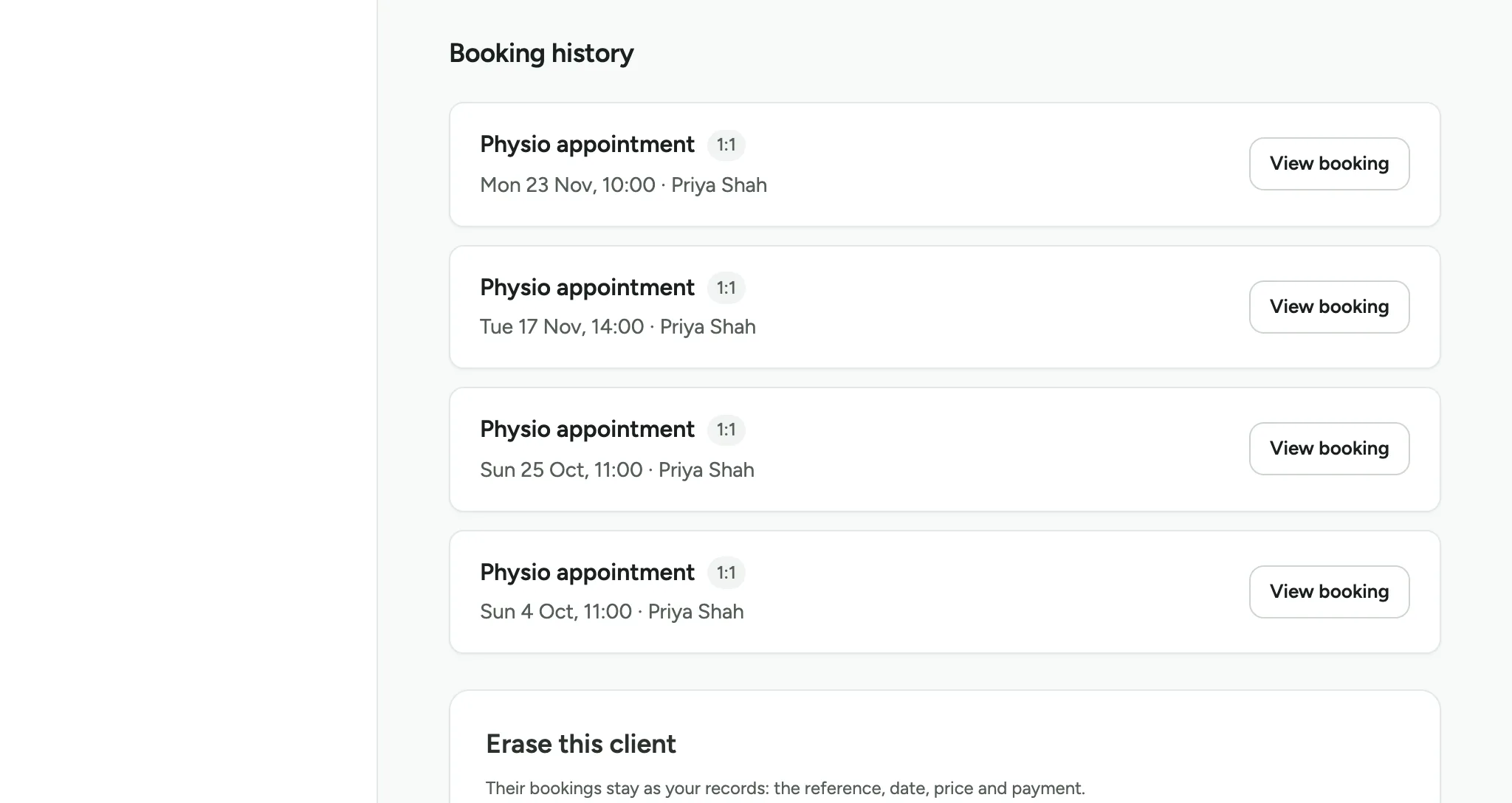
    The Booking history list, showing four physio appointments, each with a View booking button.

Updated 15 November 2026.

Related: See your bookings and change one · Book a session (the client's view)

Still stuck? Email hello@luneday.com.