Invite-only beta Luneday is open to invited hosts while we finish building. Ask for an invite

← All help

Book a session (the client's view)

What your clients see when they book with you.
Steps

  1. Your booking link opens your booking page. It shows your event first, then your free times, day by day.
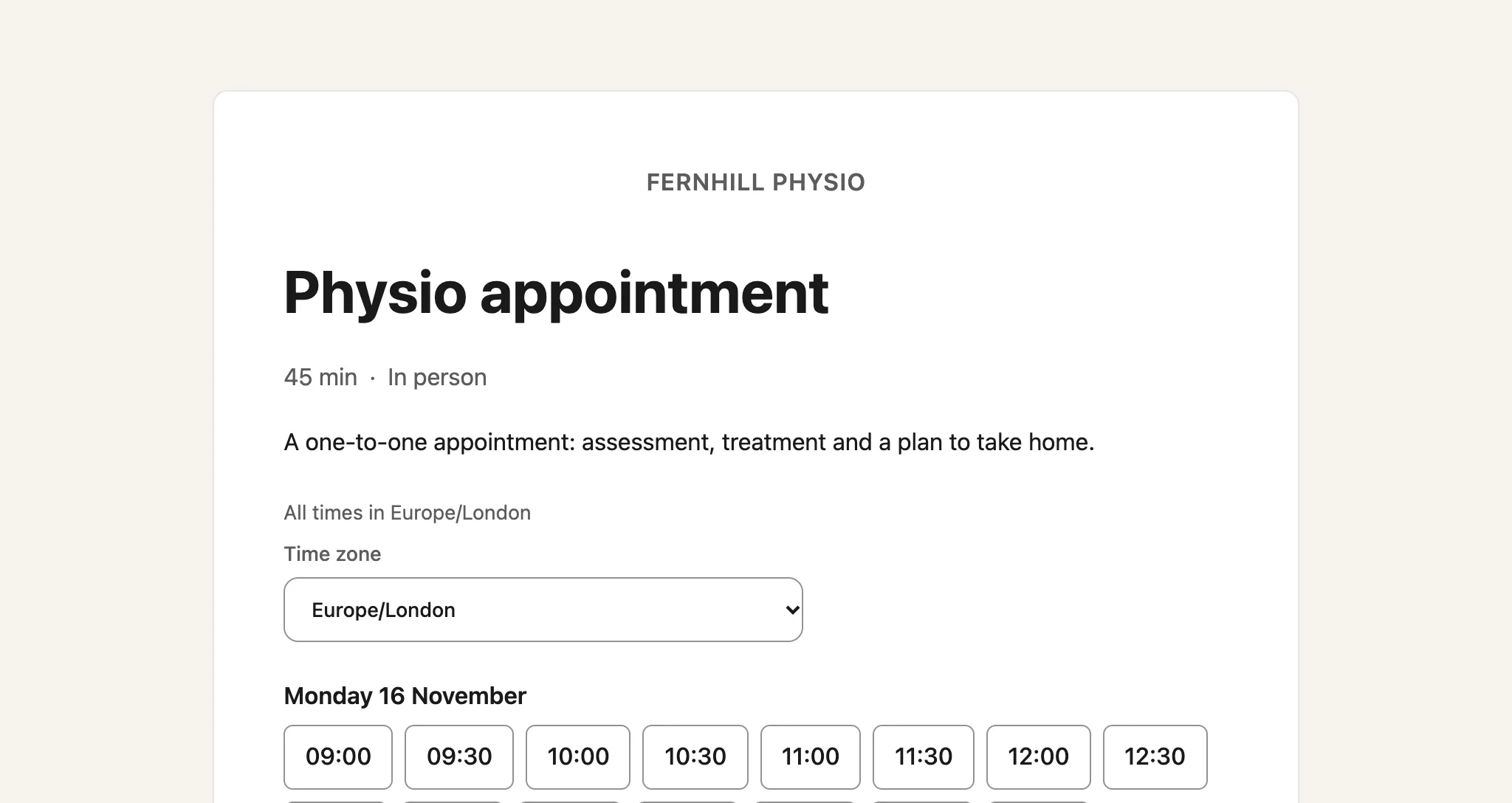
    The public booking page for Physio appointment at Fernhill Physio, with a Time zone box and the times free on Monday 16 November.
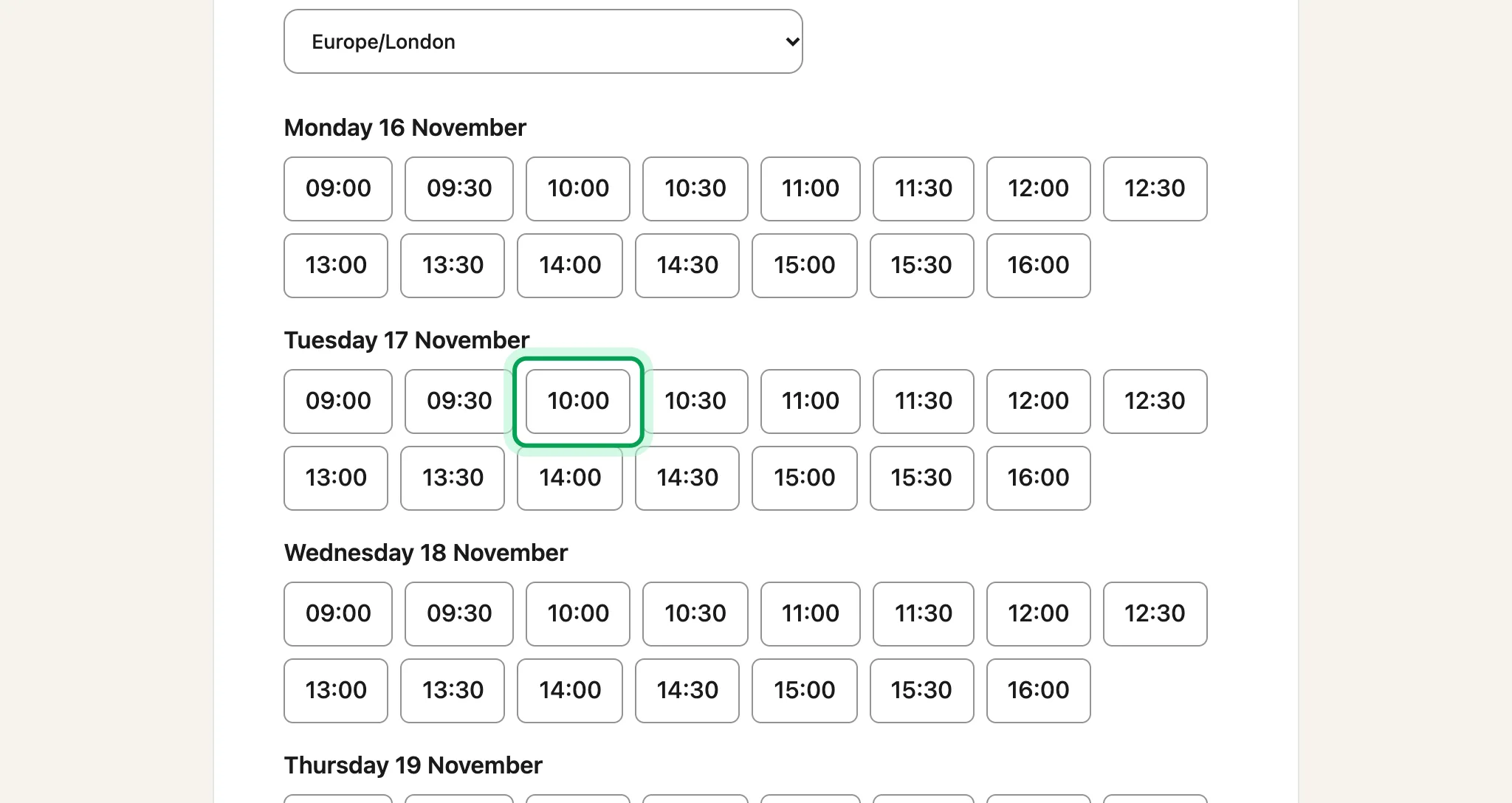
  2. Your client picks a time.

    The free times for three days, with 10:00 on Tuesday 17 November ringed.
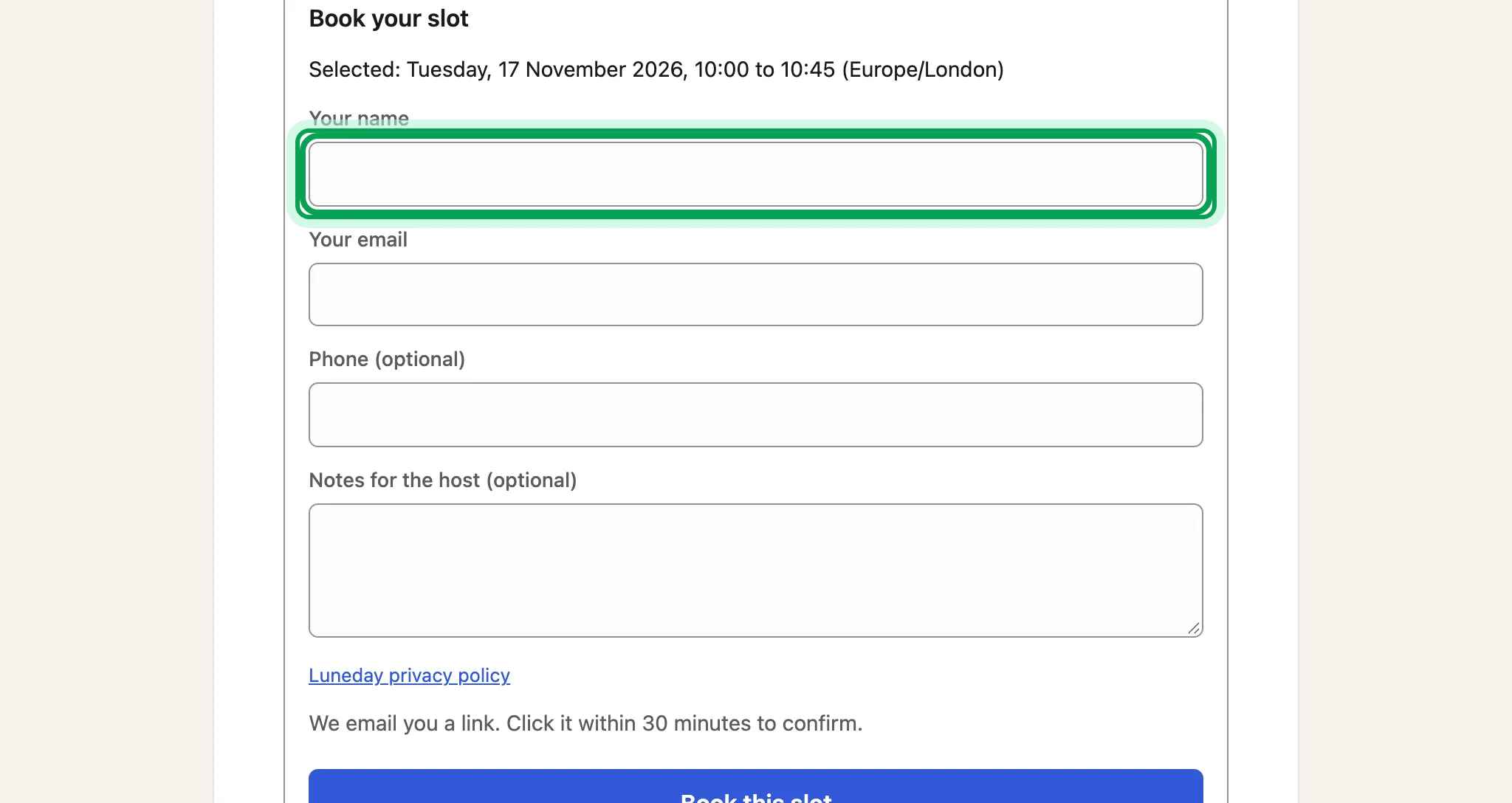
  3. They type their name and email.

    The Book your slot form for Tuesday 17 November at 10:00, with the empty Your name box ringed.
  4. Phone and notes are optional. Then they choose Book this slot.
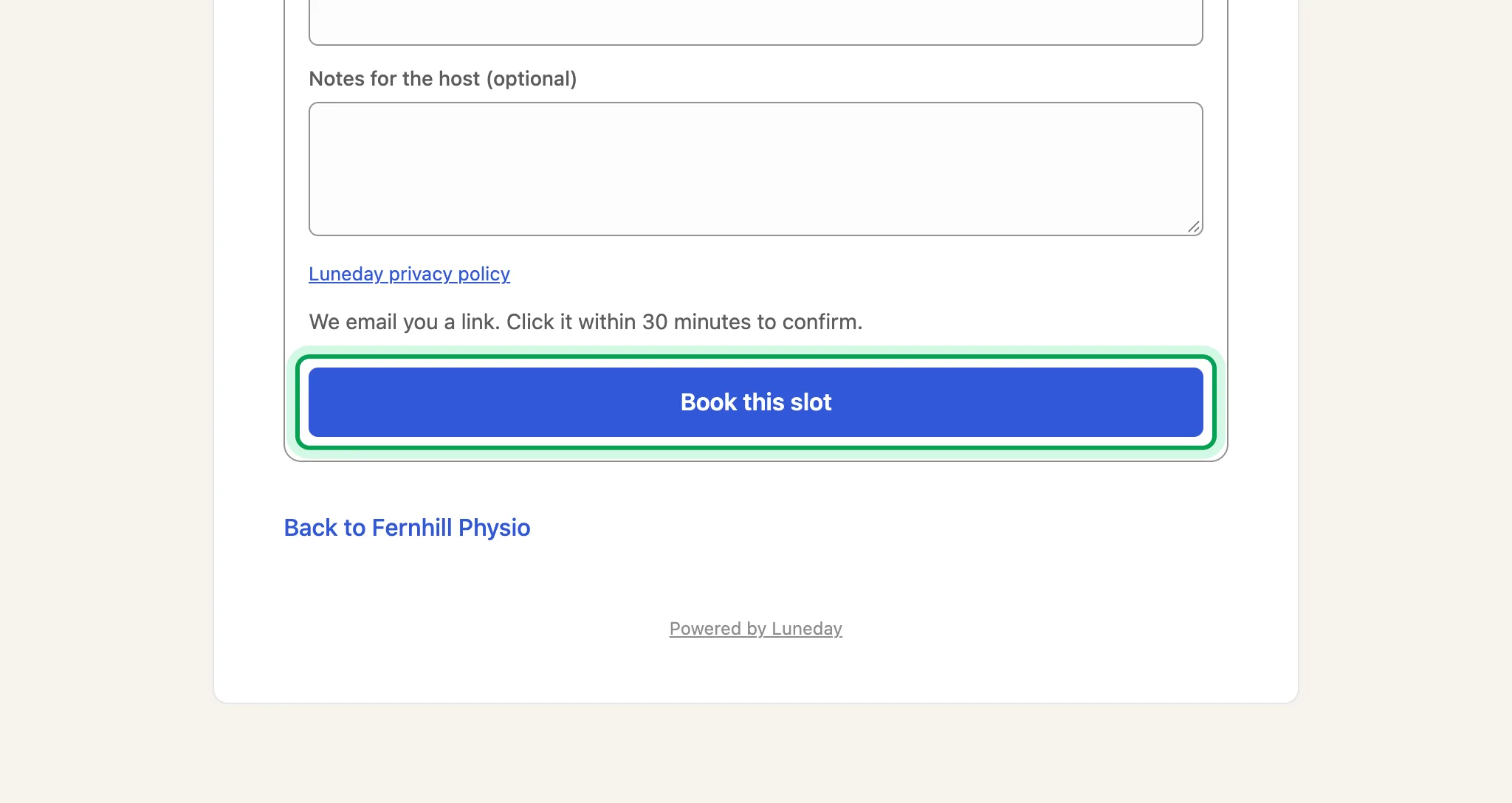
    The foot of the form below the Notes for the host box, with the Book this slot button ringed.
  5. Luneday emails them a link to confirm. The time is held for 30 minutes.
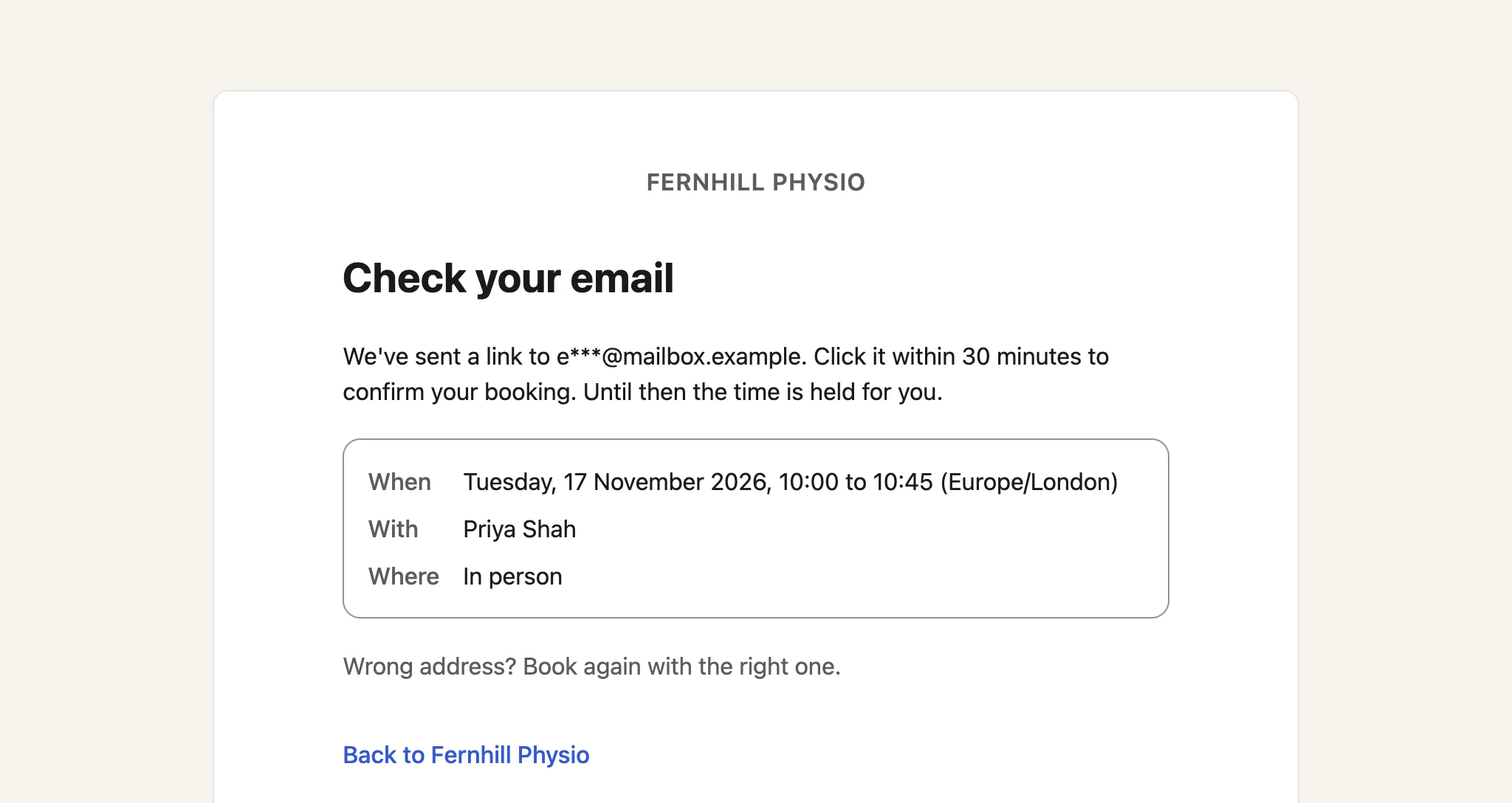
    The Check your email page, with the booking's day, time, host and place.
  6. In the email, they choose Confirm my booking.
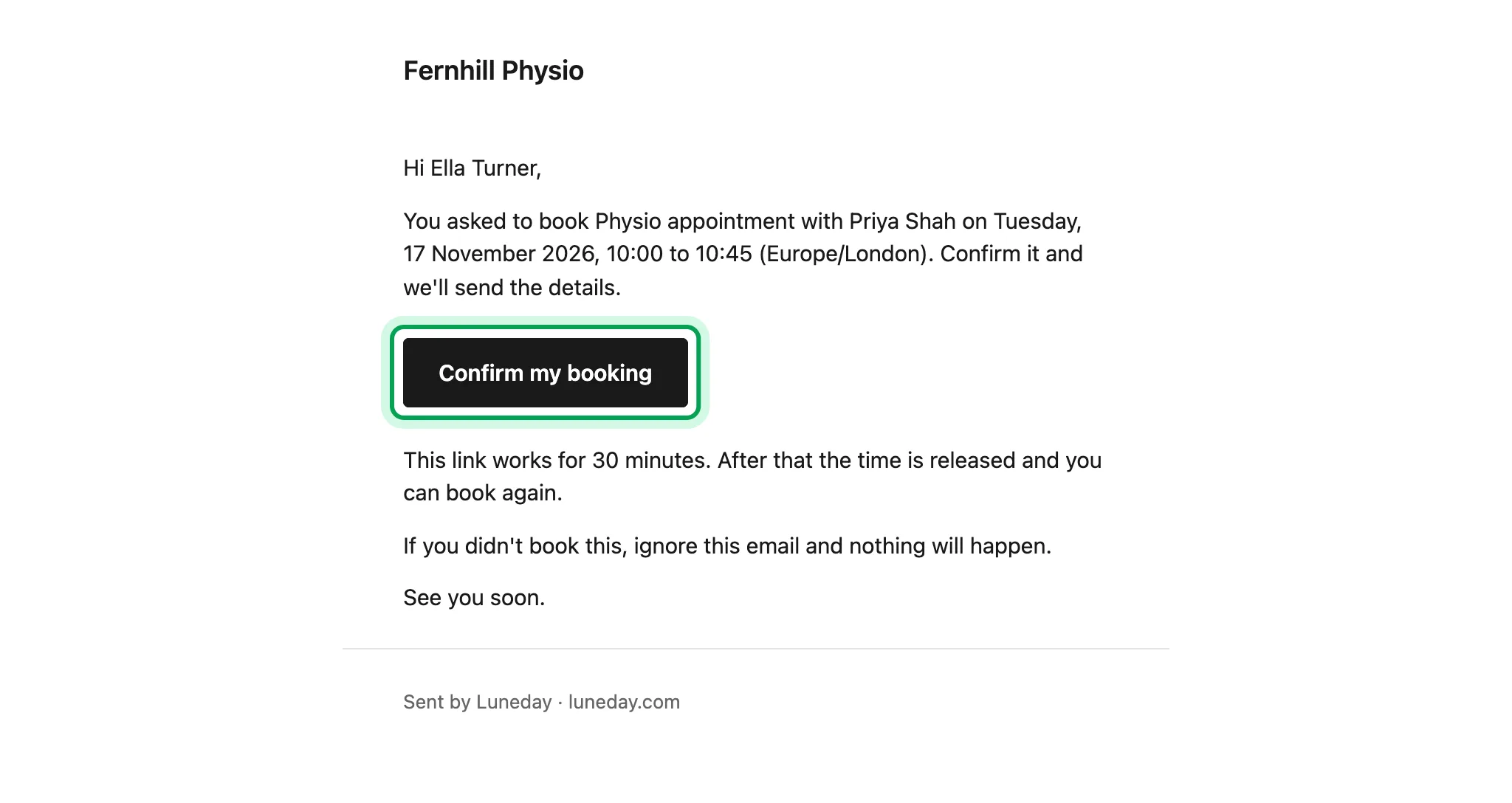
    The email asking Ella Turner to confirm, with the Confirm my booking button ringed.
  7. They are booked. From there they can add it to their calendar, reschedule it or cancel it.
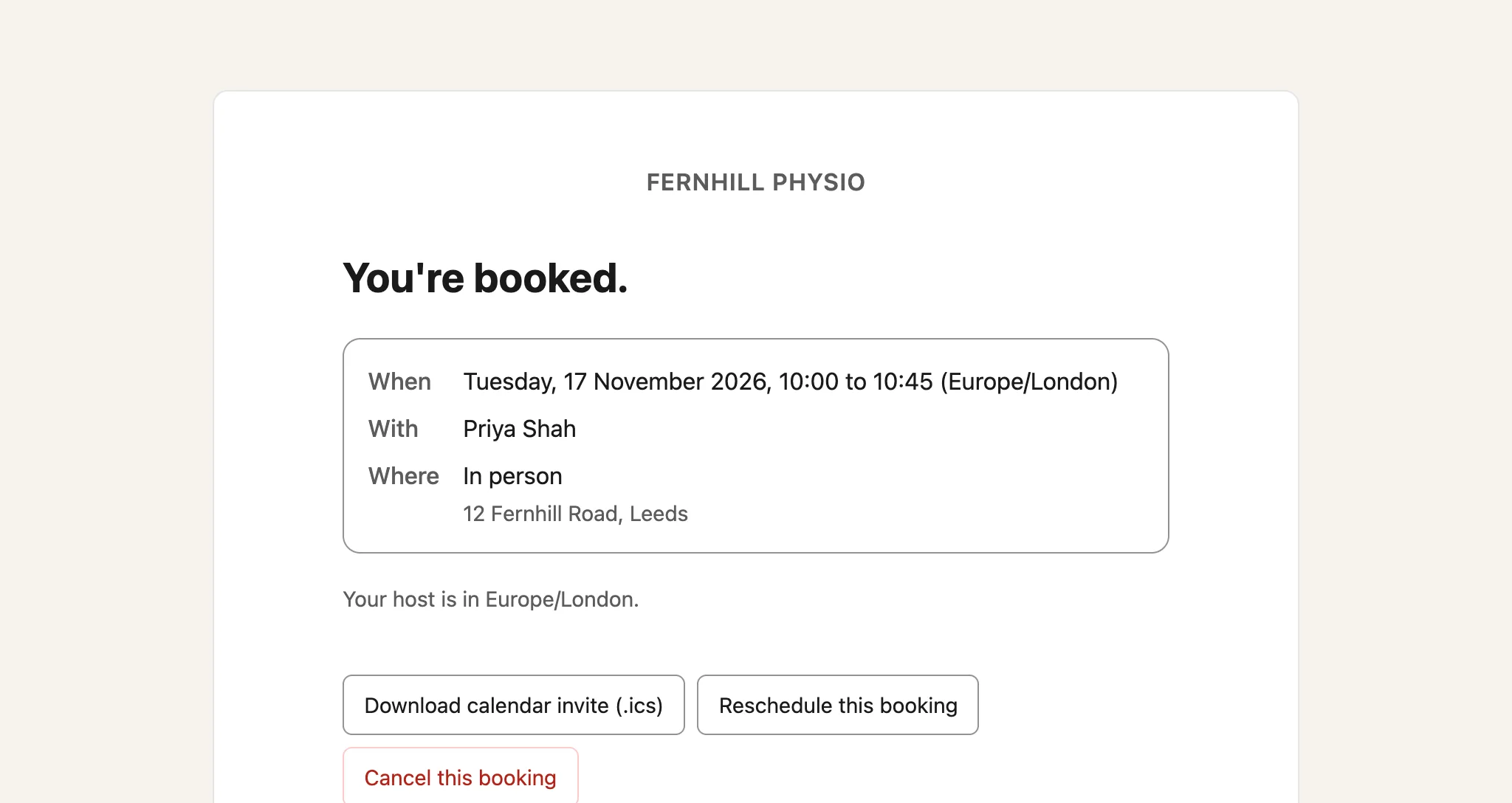
    The You're booked page, with the booking's details and buttons to download a calendar invite, reschedule or cancel.
  8. Luneday also emails them the details, with links to reschedule or cancel.
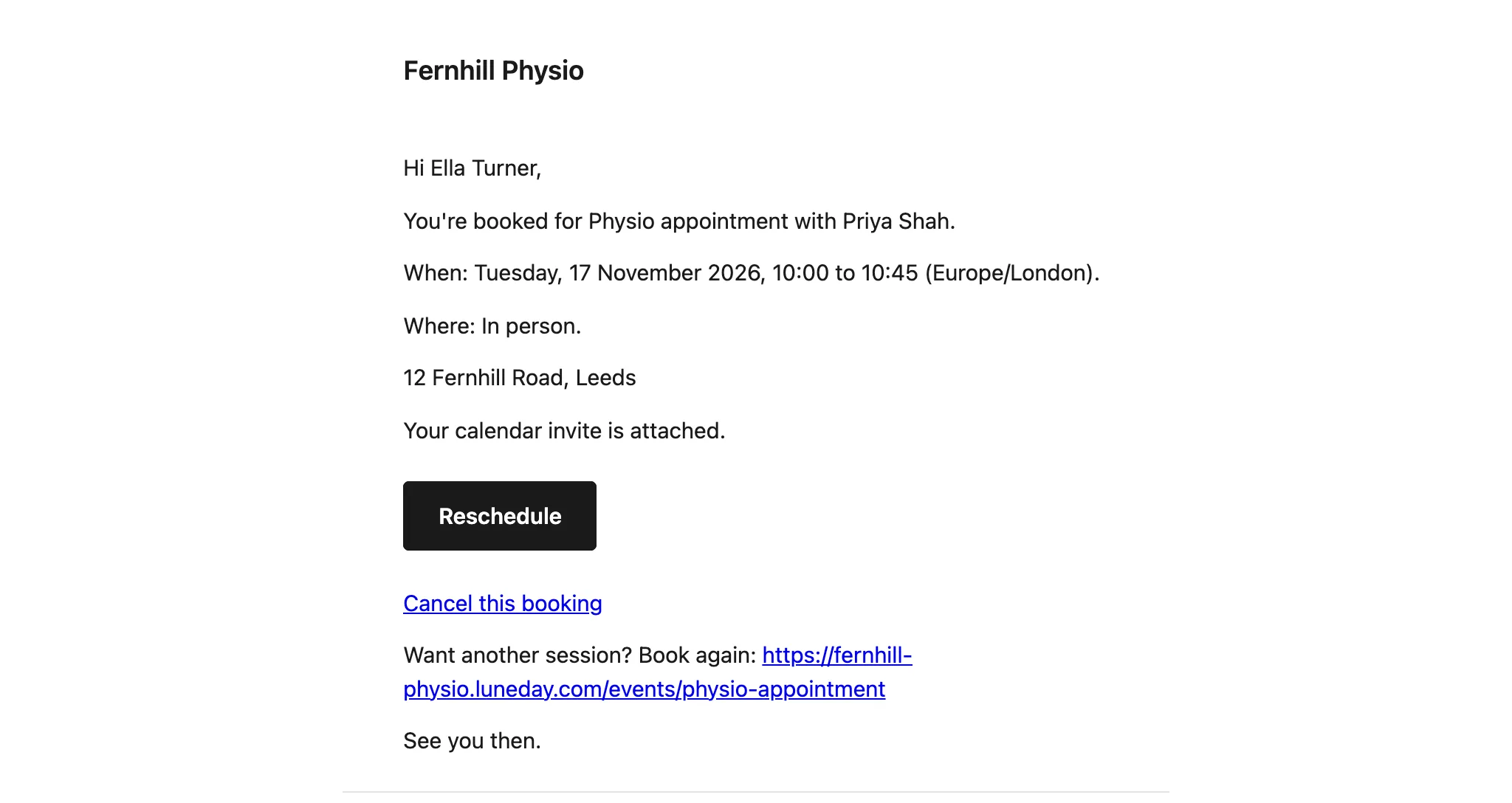
    The booking email to Ella Turner, with the time, the address, a Reschedule button and a cancel link.

Updated 15 November 2026.

Related: See your bookings and change one · Look after your clients

Still stuck? Email hello@luneday.com.