Invite-only beta Luneday is open to invited hosts while we finish building. Ask for an invite

← All help

Choose which emails you get

Turn the daily meeting digest on or off.
Steps

  1. You choose which emails Luneday sends you from your account.
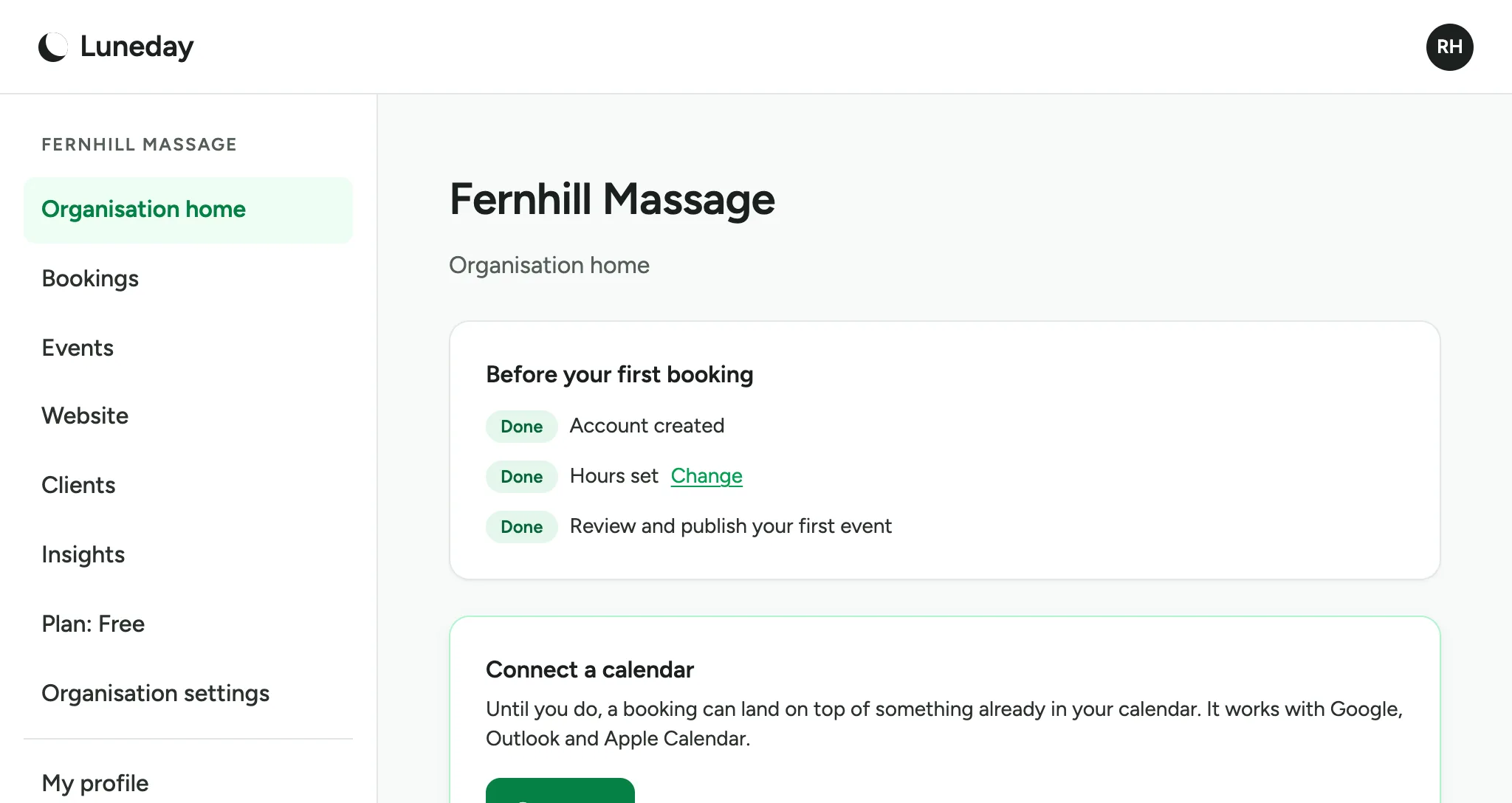
    The organisation home page, with your initials at the top right.
  2. Choose your initials at the top right.
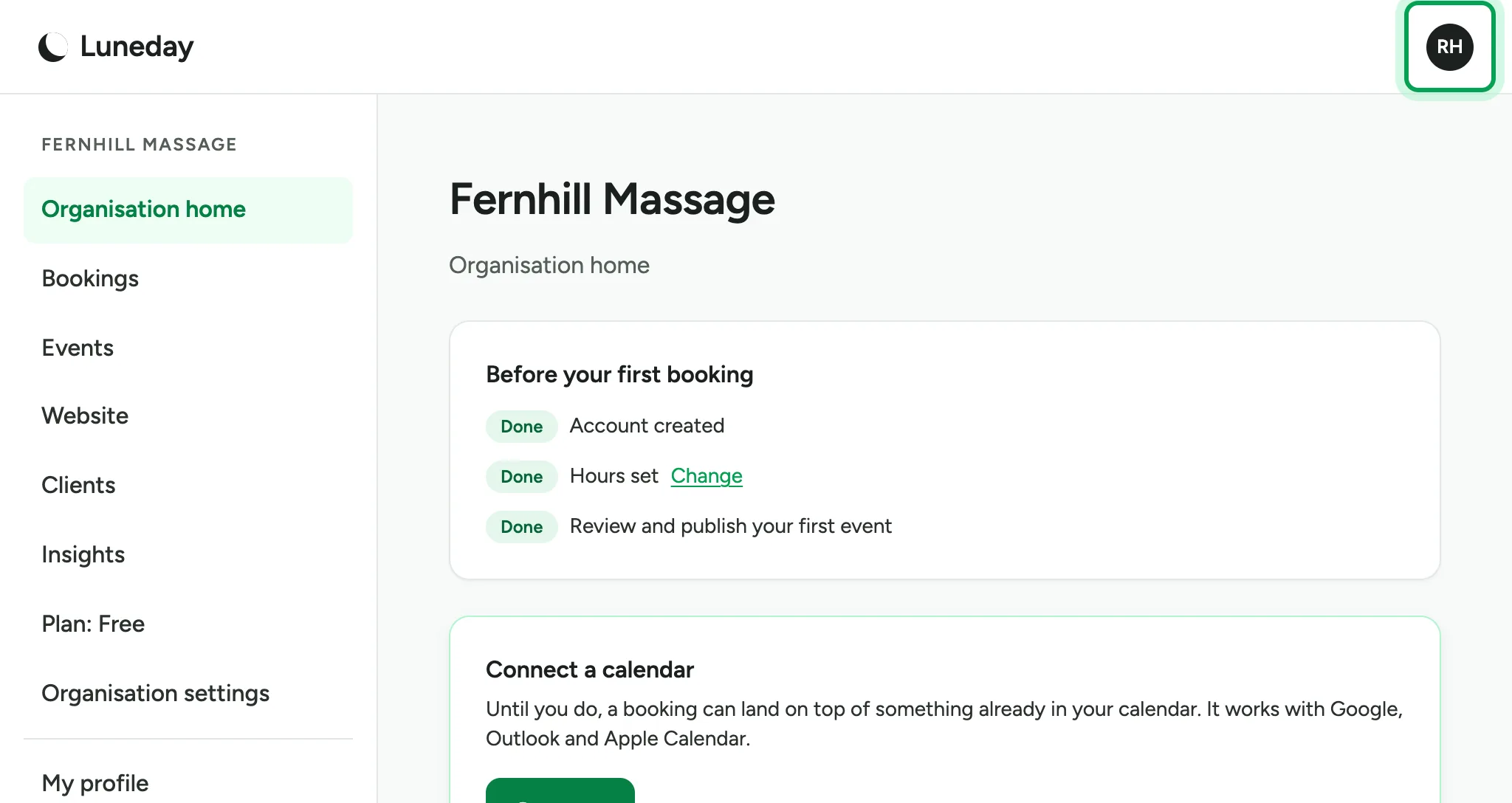
    The organisation home page, with the initials RH ringed at the top right.
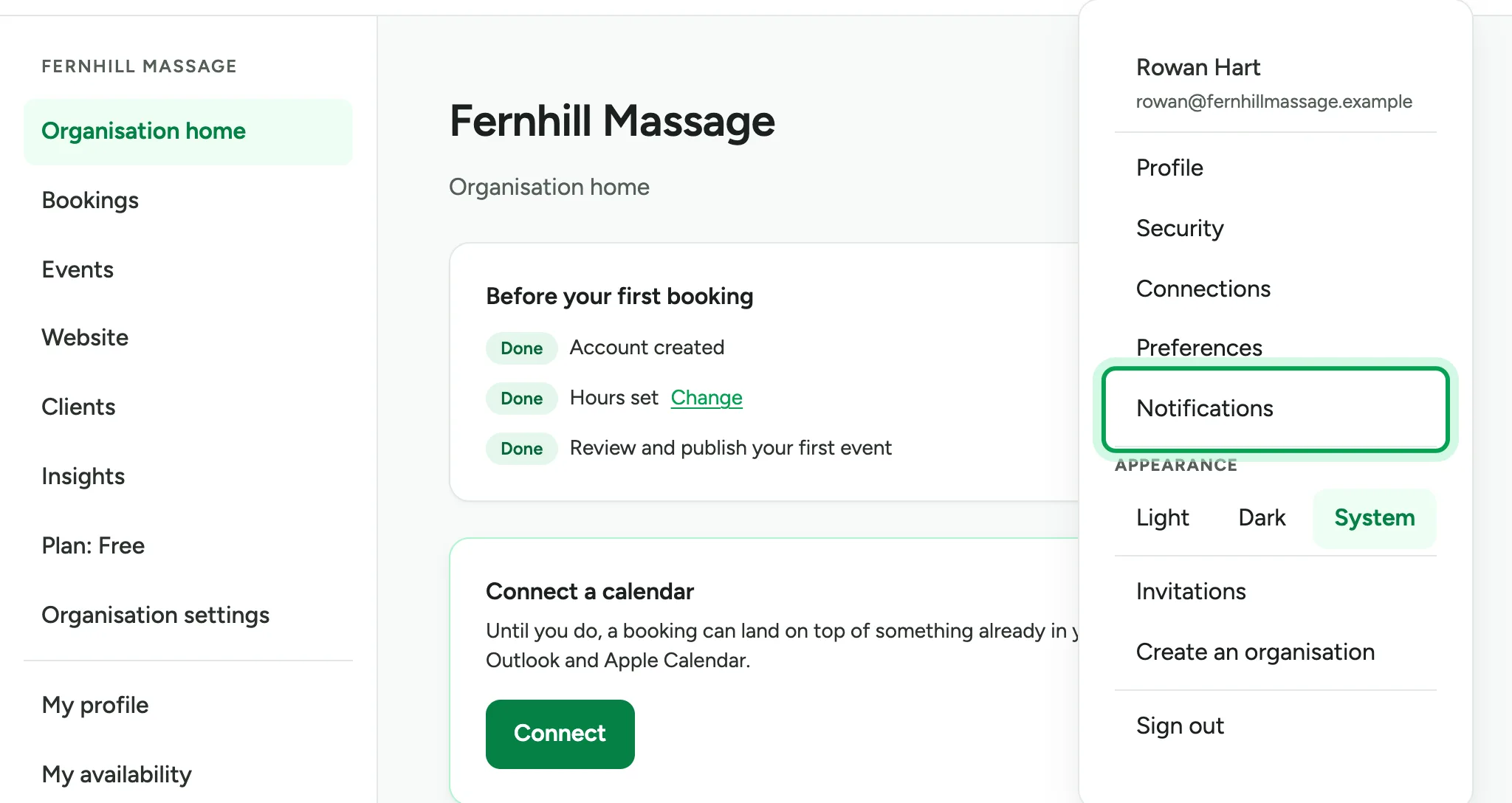
  3. Choose Notifications.

    The account menu open, with Notifications ringed below Preferences.
  4. Your choices apply in every organisation you're in. To change your timezone, choose Set your timezone in Preferences.
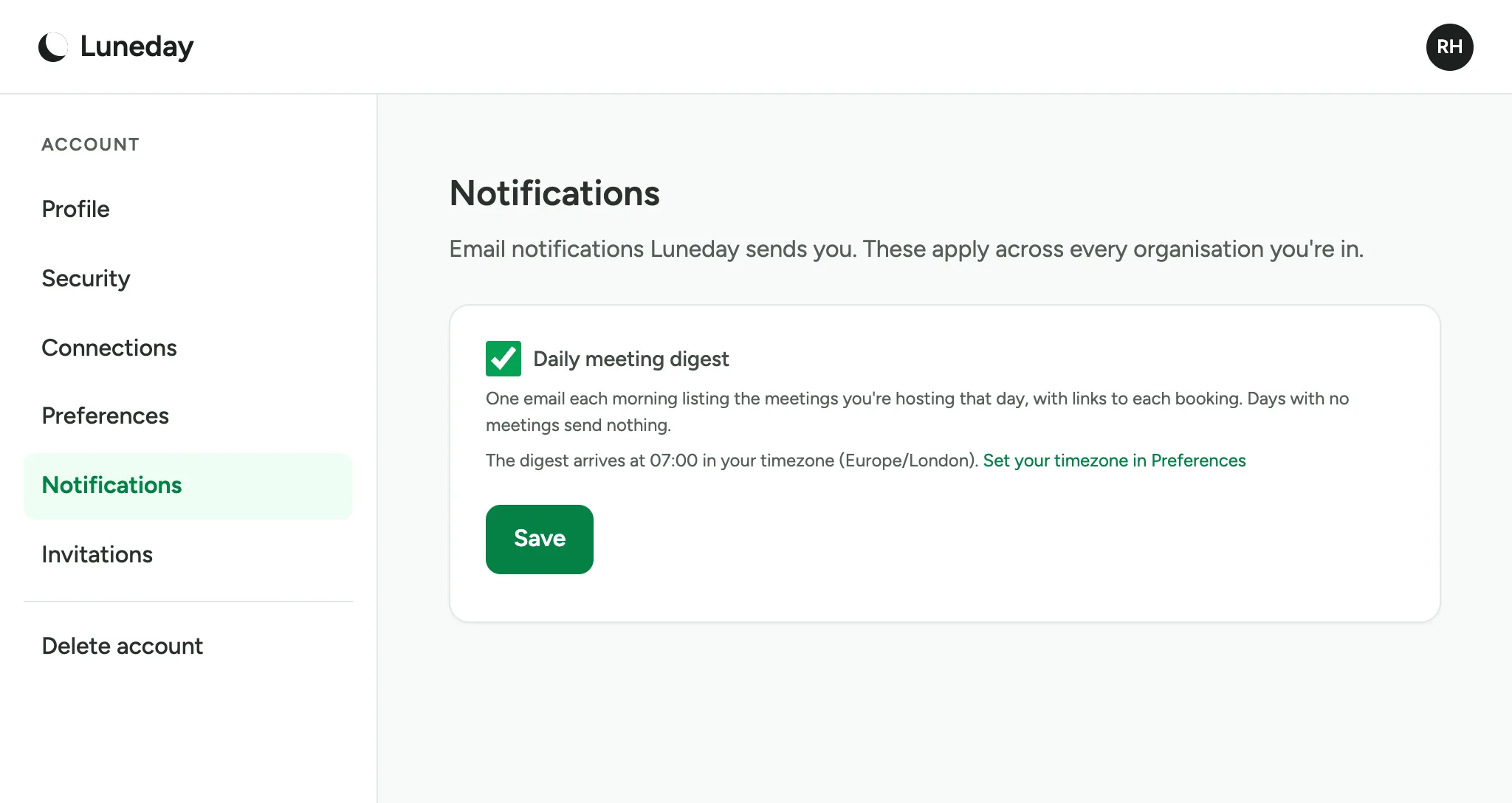
    The Notifications page, with the timezone and a Set your timezone in Preferences link under the digest.
  5. The Daily meeting digest lists the meetings you host that day. It comes at 07:00 in your timezone. Days with no meetings send nothing.
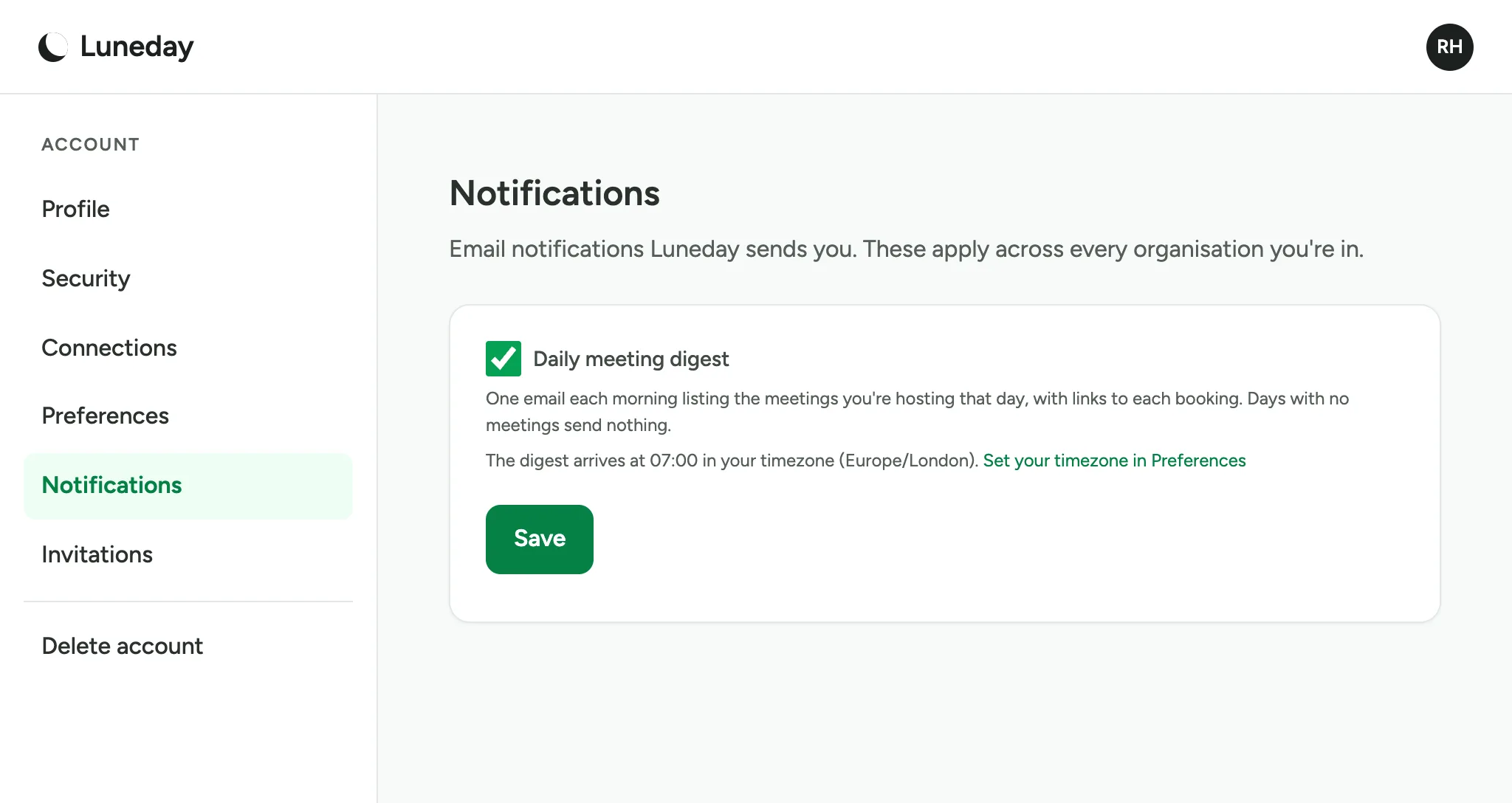
    The Daily meeting digest ticked, with its description and a Save button.
  6. To stop the digest, untick Daily meeting digest.
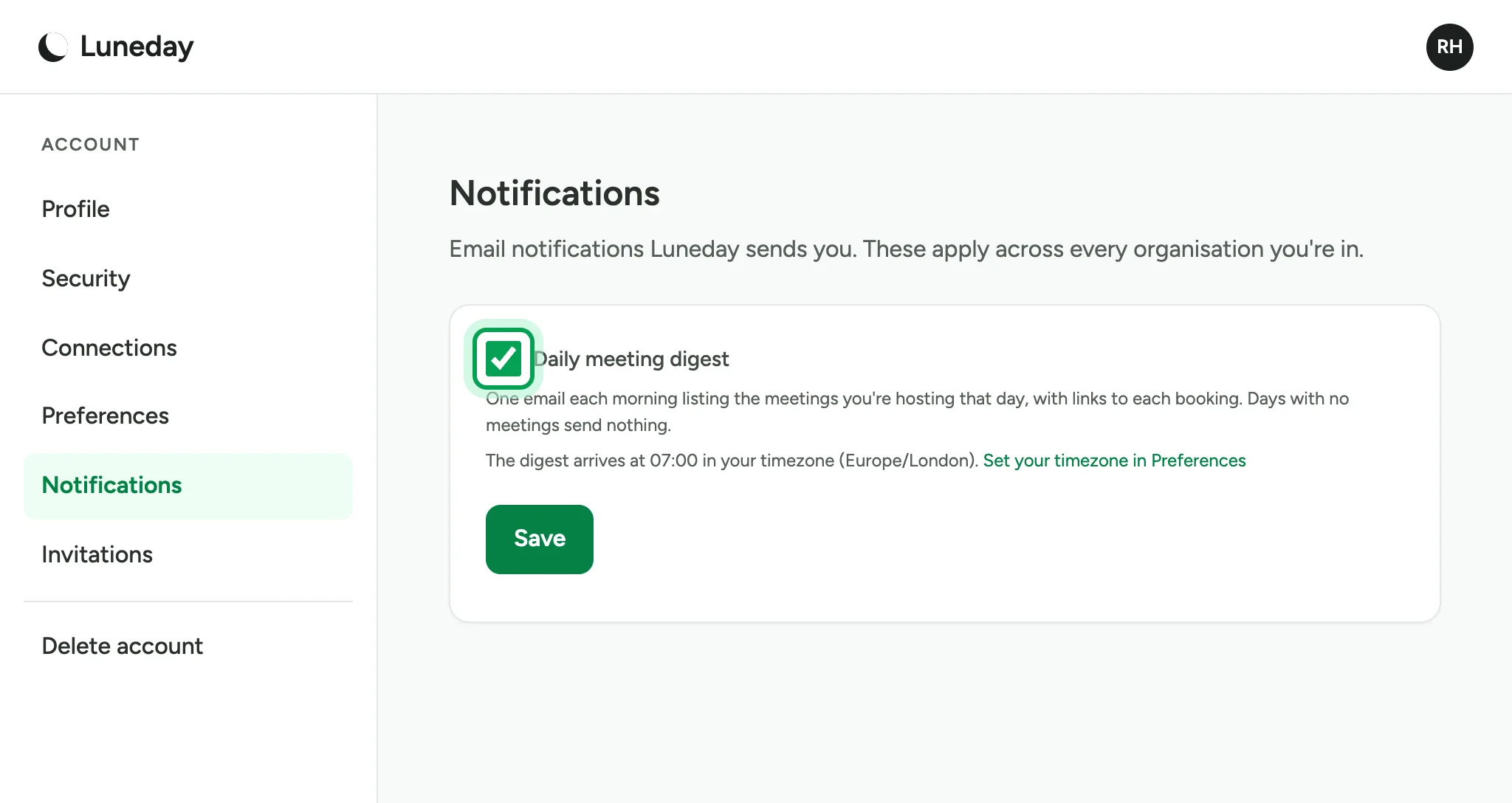
    The ticked Daily meeting digest box, ringed.
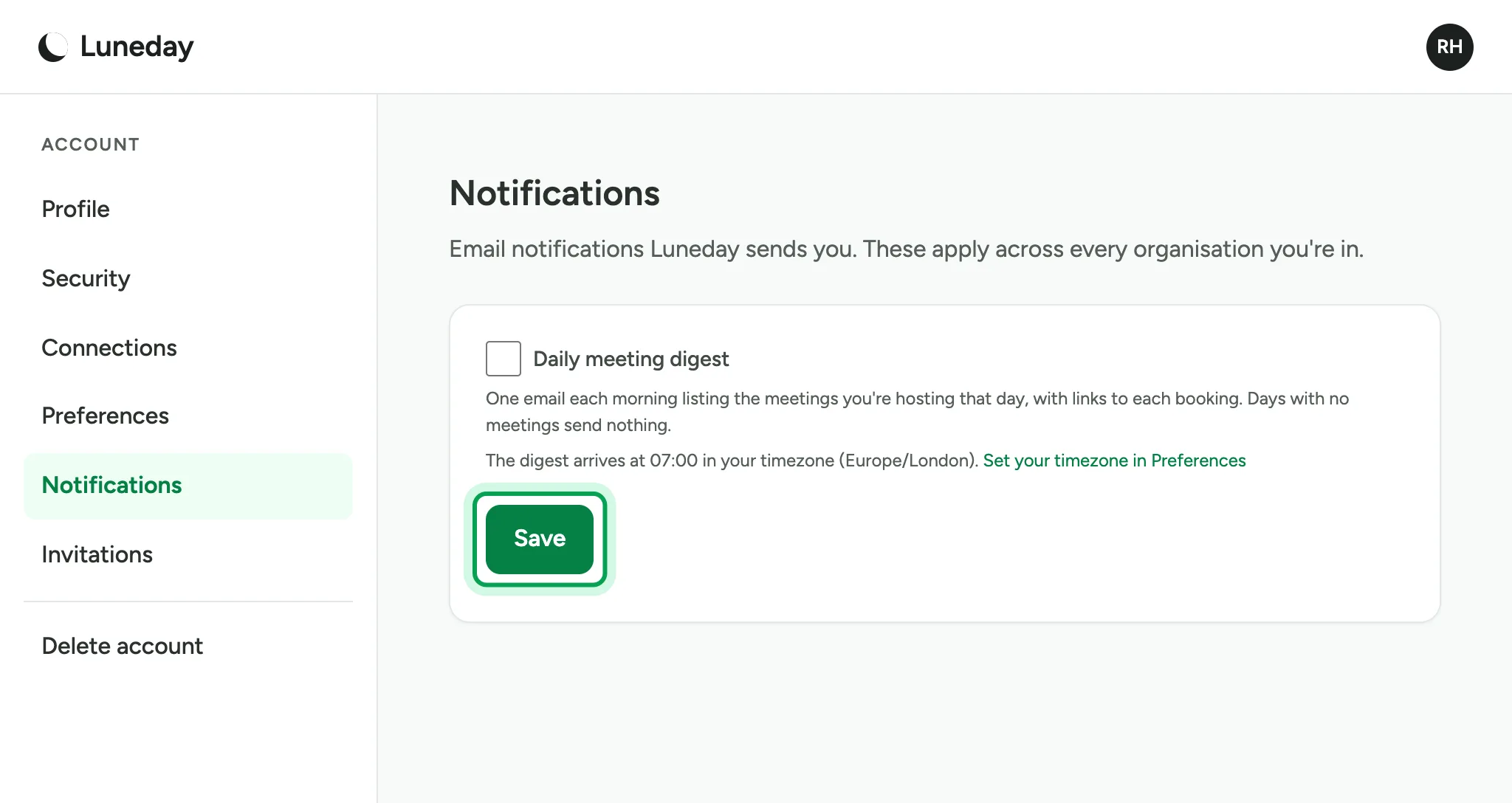
  7. Choose Save.

    Daily meeting digest unticked, with Save ringed.
  8. Your choice is saved. Tick it again whenever you want the digest back.
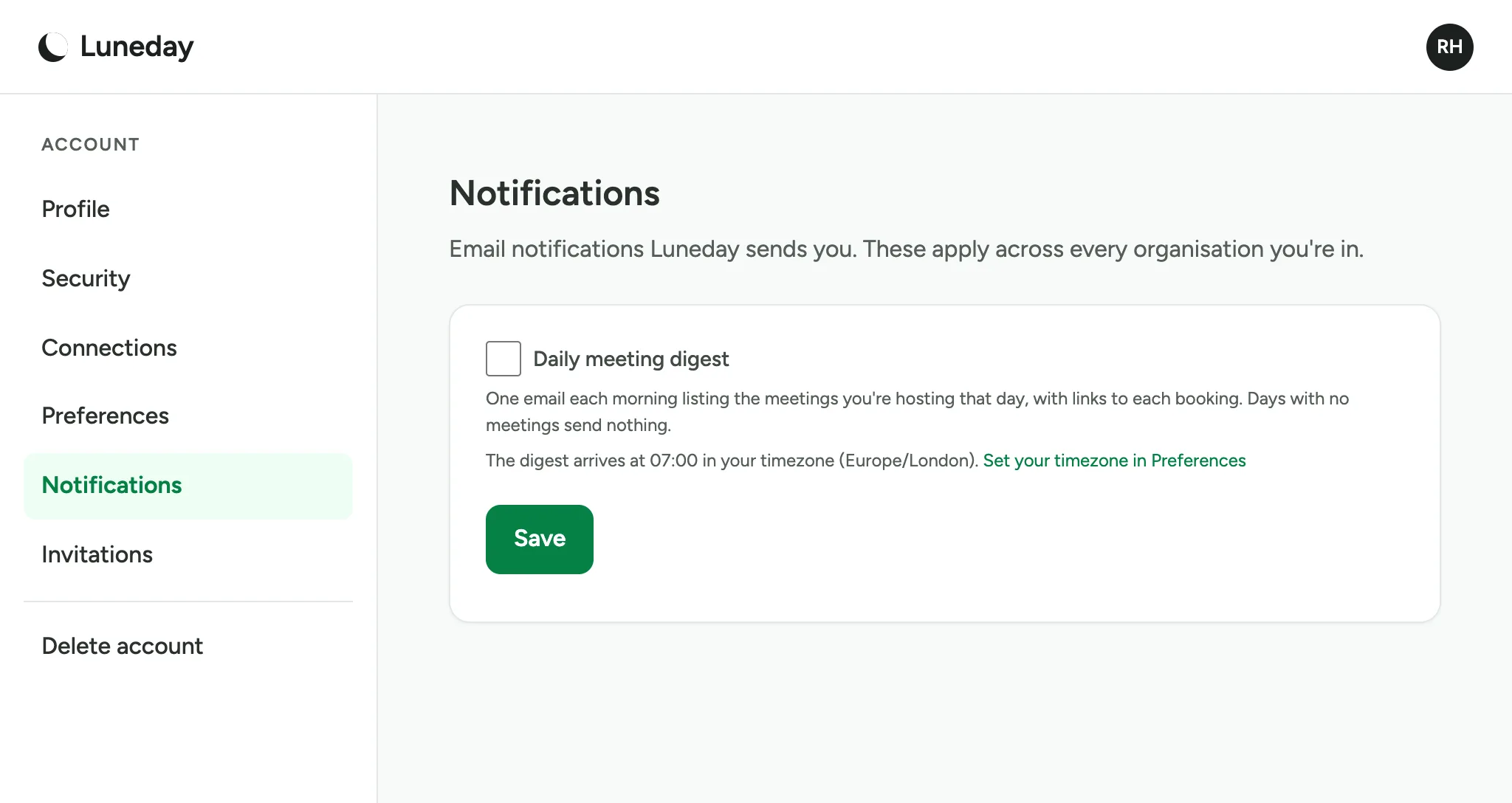
    The Notifications page after saving, with Daily meeting digest still unticked.

Updated 15 November 2026.

Related: Turn on two-factor sign-in

Still stuck? Email hello@luneday.com.