Connect Google Calendar or Outlook
Stop people booking the times your calendar is busy.
Steps
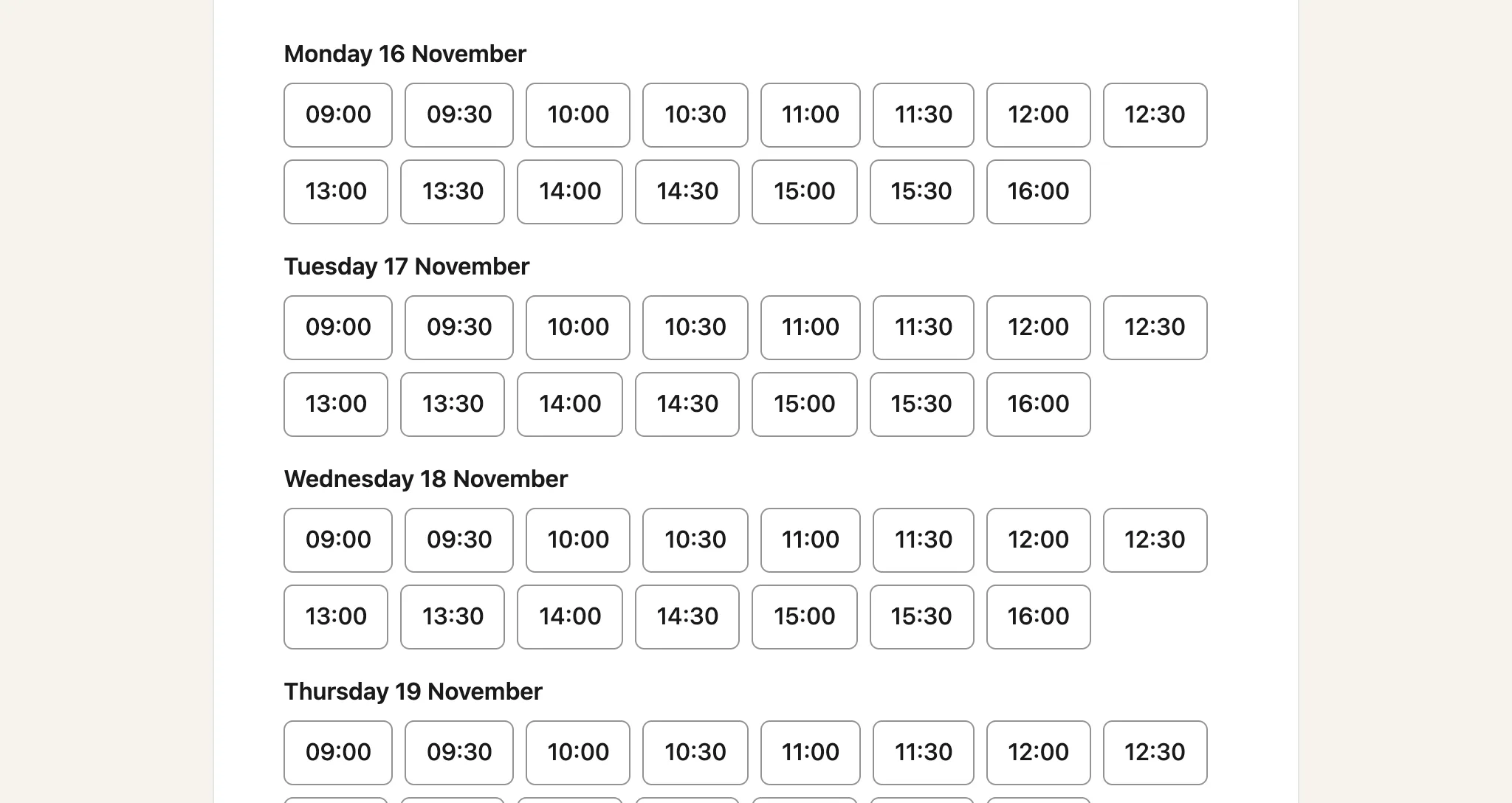
Until you connect a calendar, your booking page offers every time inside your hours, even when you are busy.
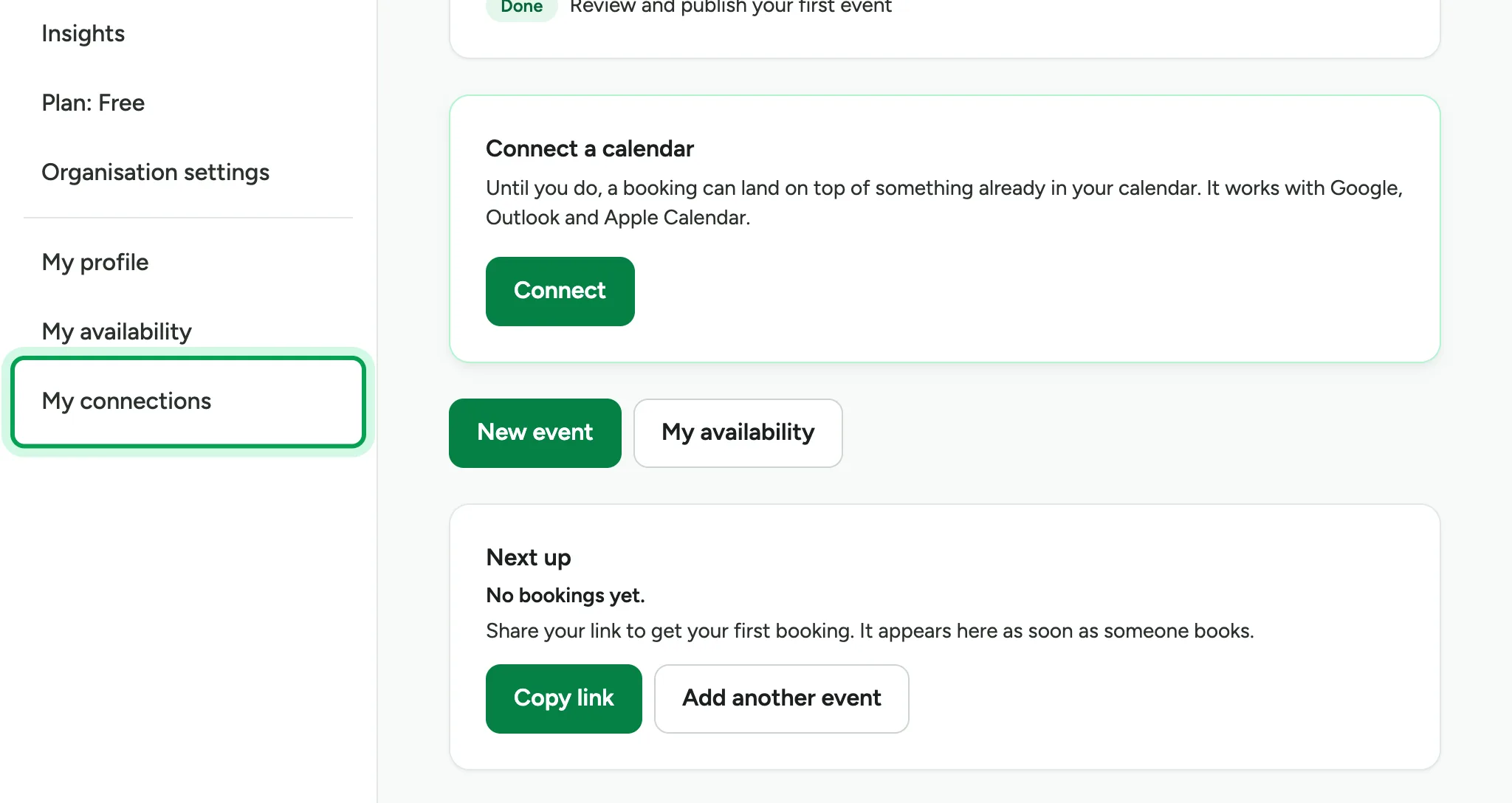
Connect your calendar so Luneday stops offering the times you are busy. Choose My connections in the sidebar.
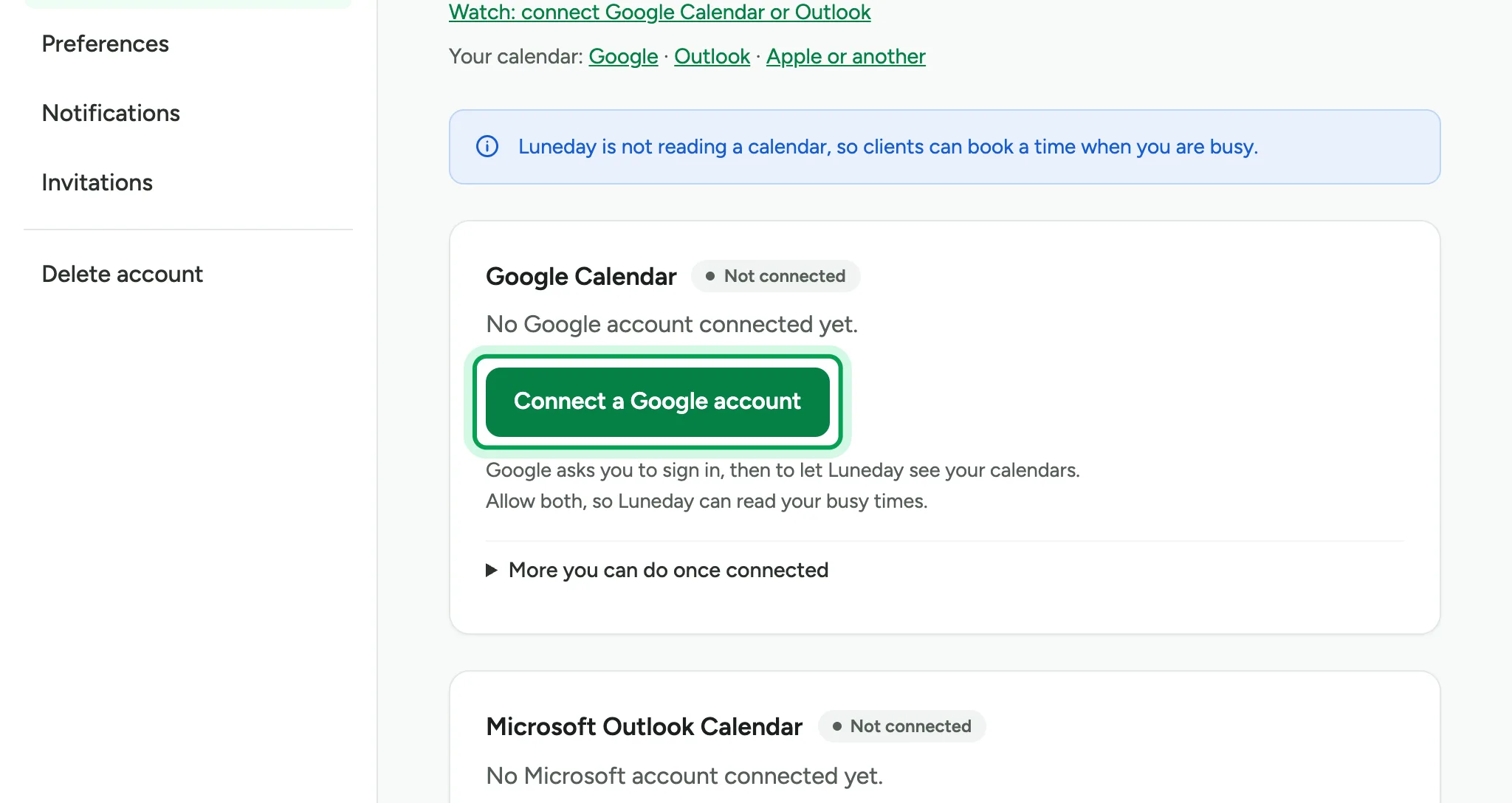
Choose Connect a Google account.
Sign in to Google and allow Luneday to see your calendars. Google sends you back to Connections, where Google Calendar shows Connected.
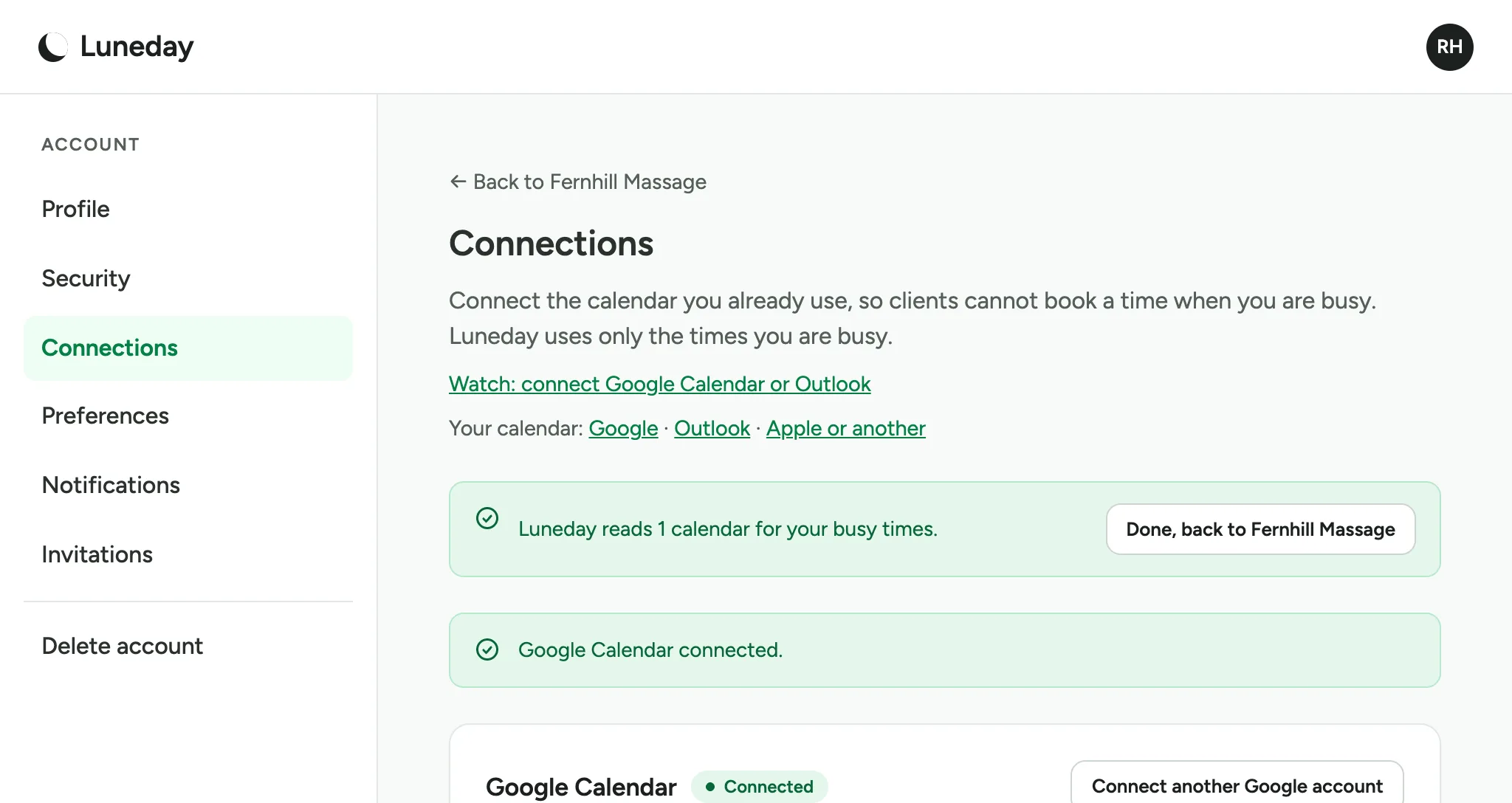
Luneday now reads your main calendar by itself. It is listed under Calendars Luneday reads.
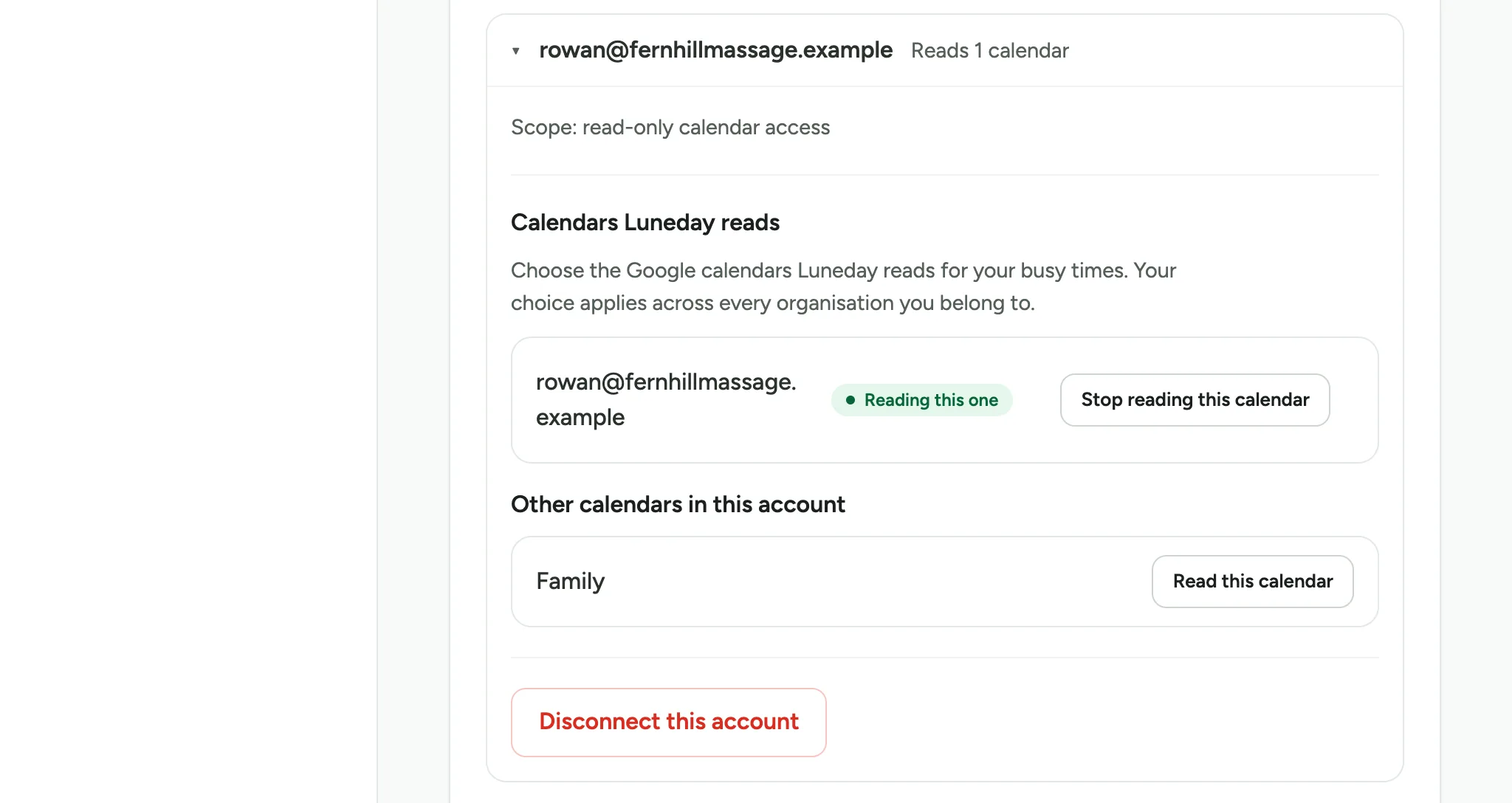
To read another calendar as well, choose Read this calendar beside it.
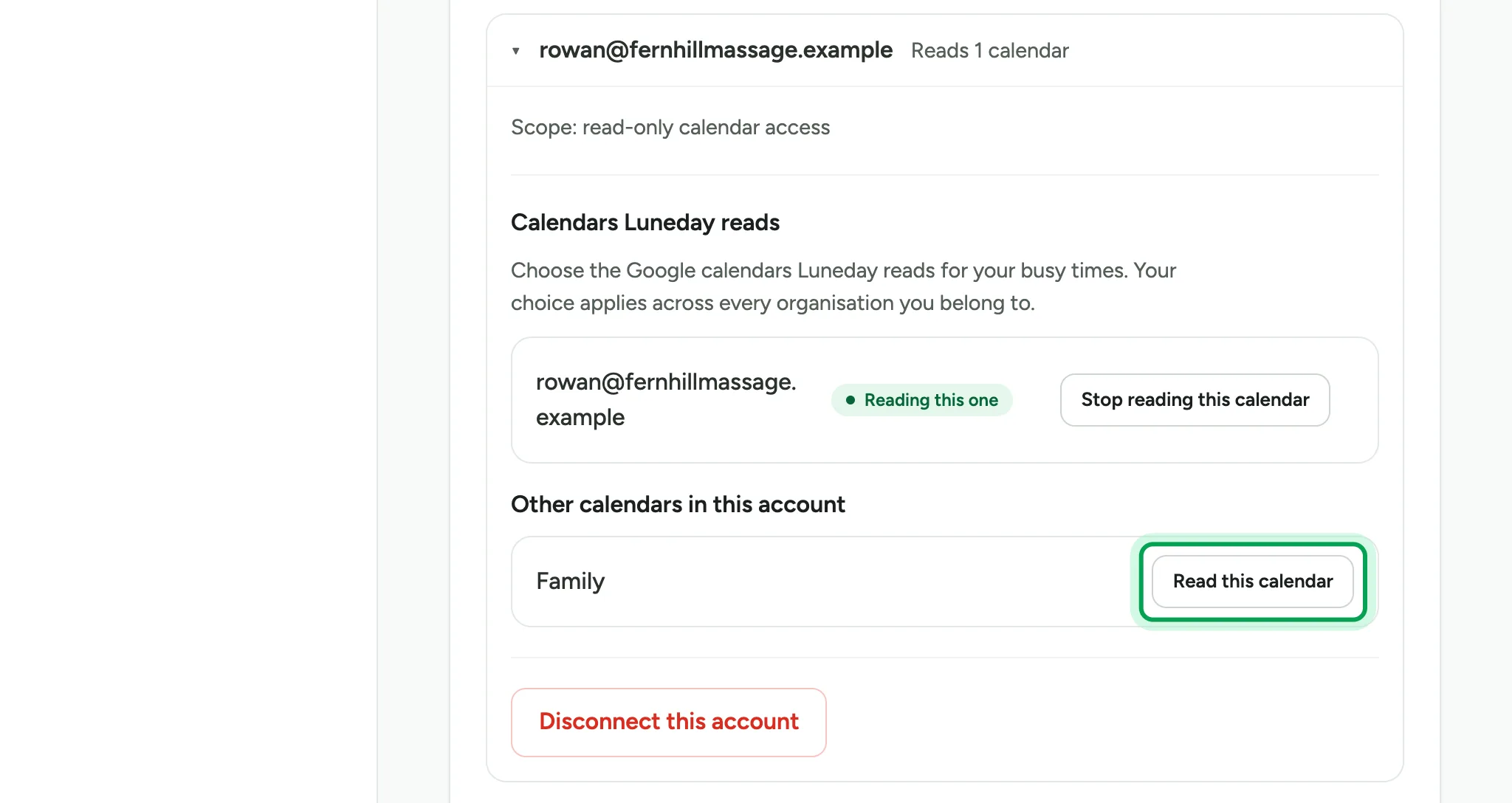
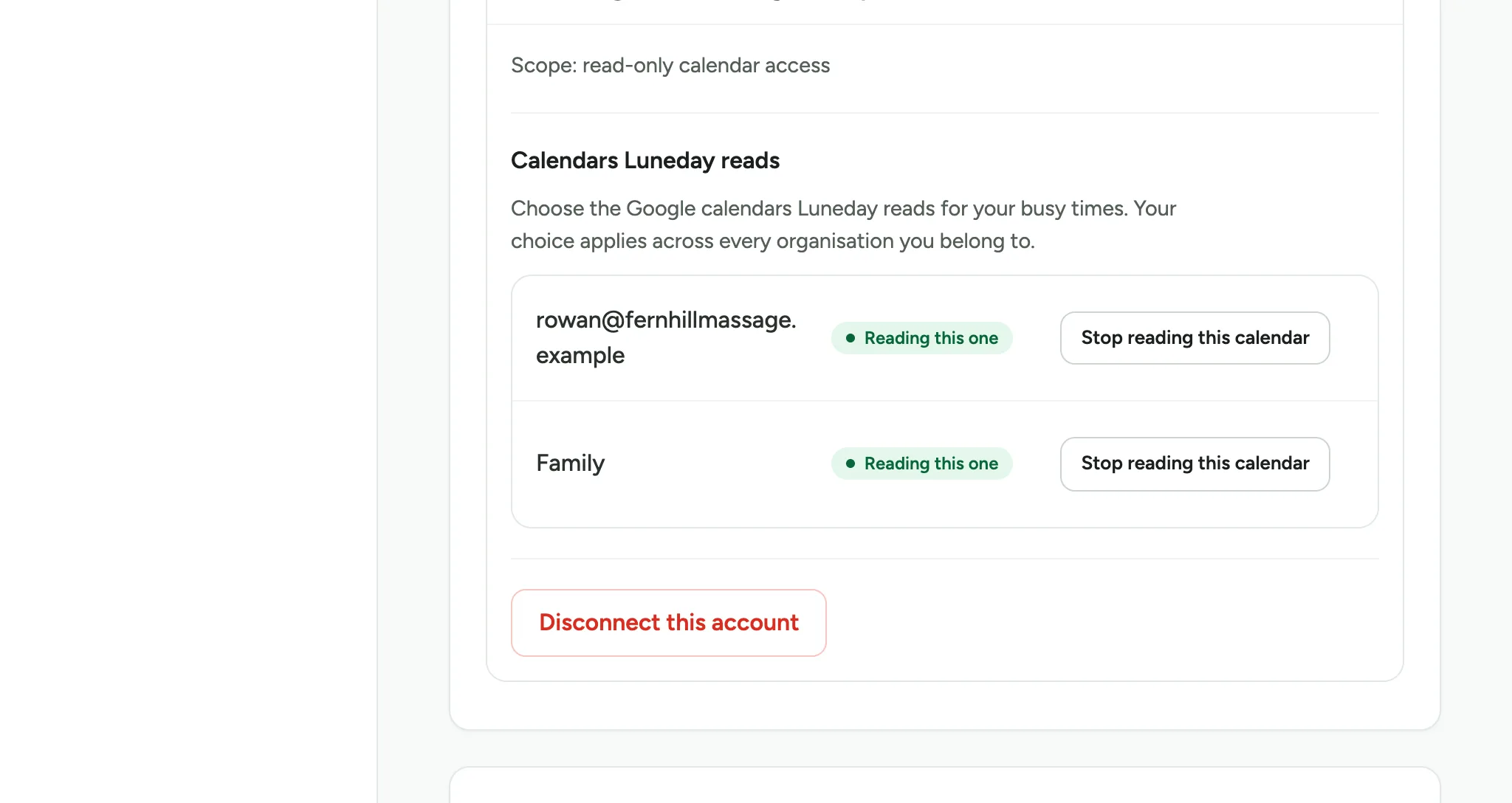
Each calendar Luneday reads shows Reading this one. To stop reading one, choose Stop reading this calendar beside it.
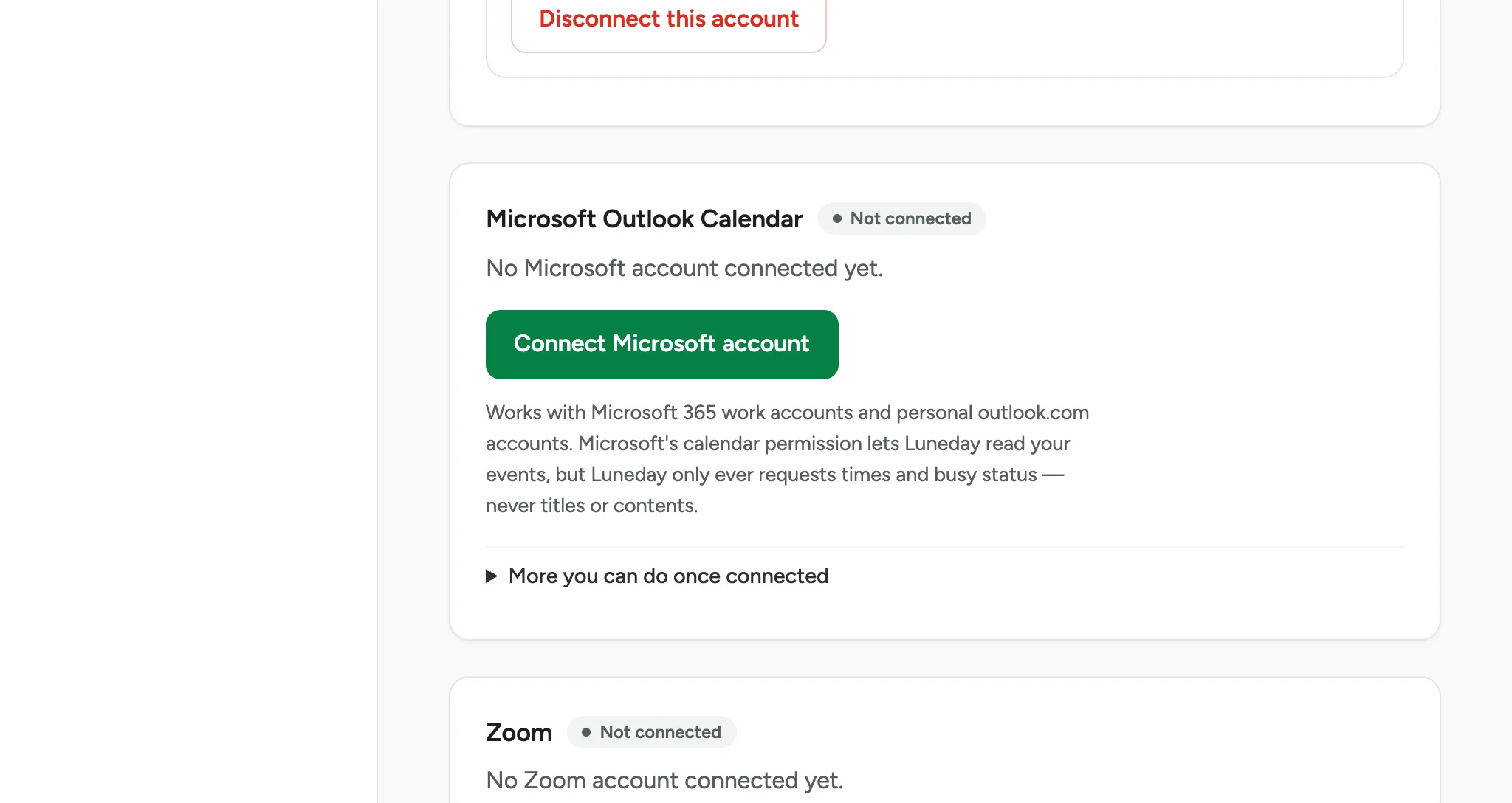
For Outlook, choose Connect Microsoft account instead, and sign in to Microsoft.
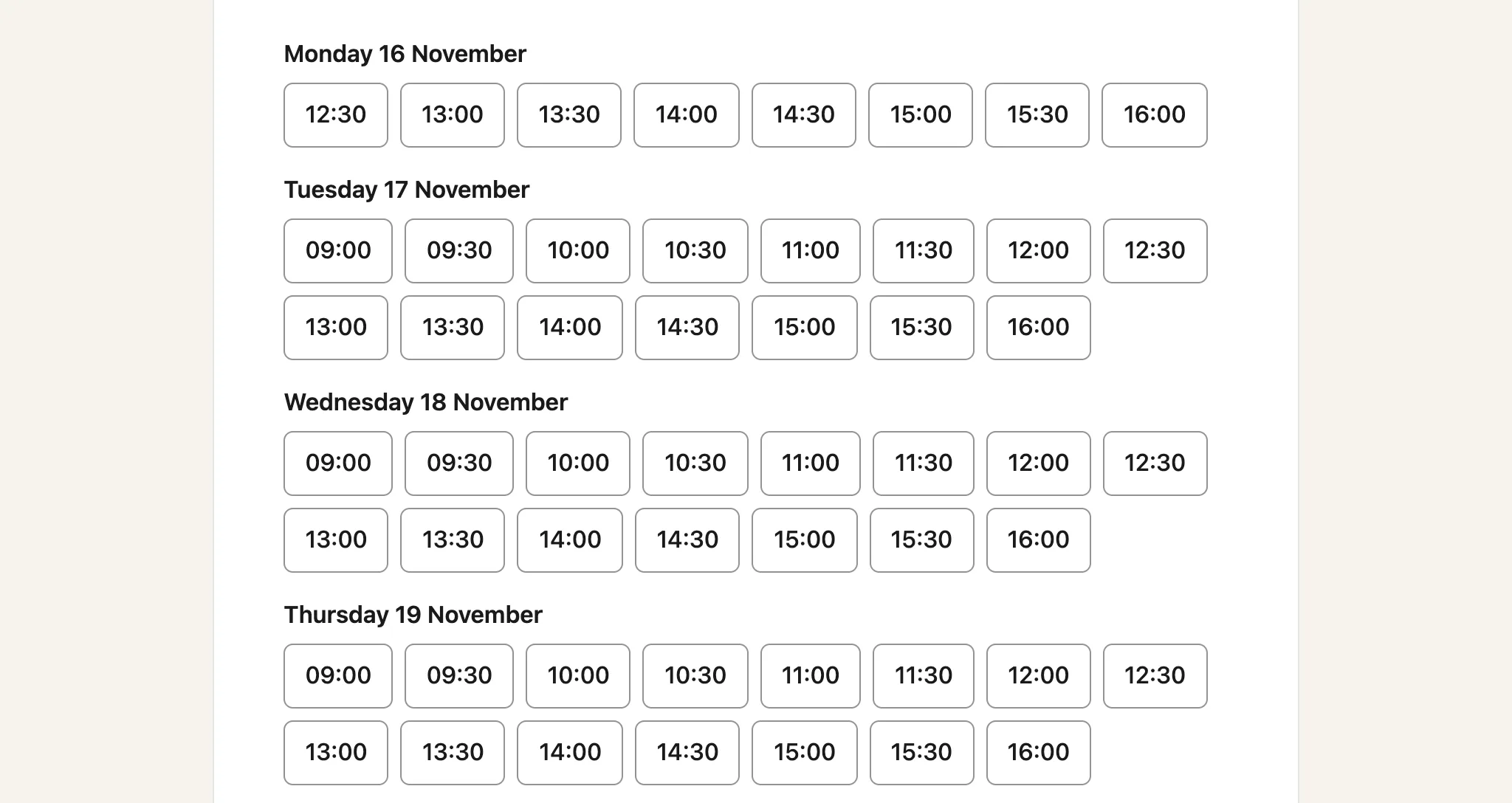
Your booking page no longer offers the times your calendar is busy. In the example, a busy Monday morning has gone.
Updated 15 November 2026.
Related: Take payment with Mollie · Add a Zoom, Meet or Teams link
Still stuck? Email hello@luneday.com.